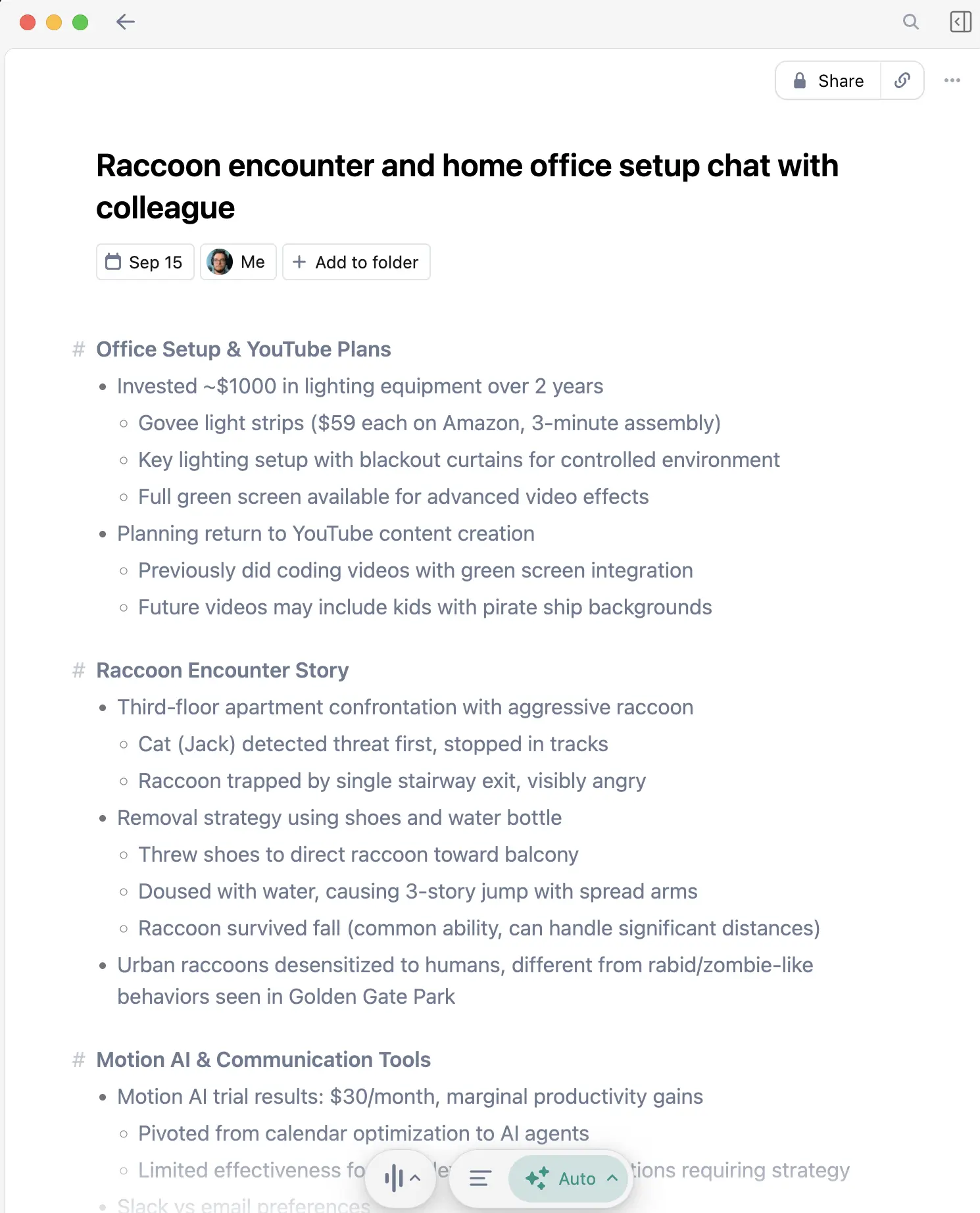
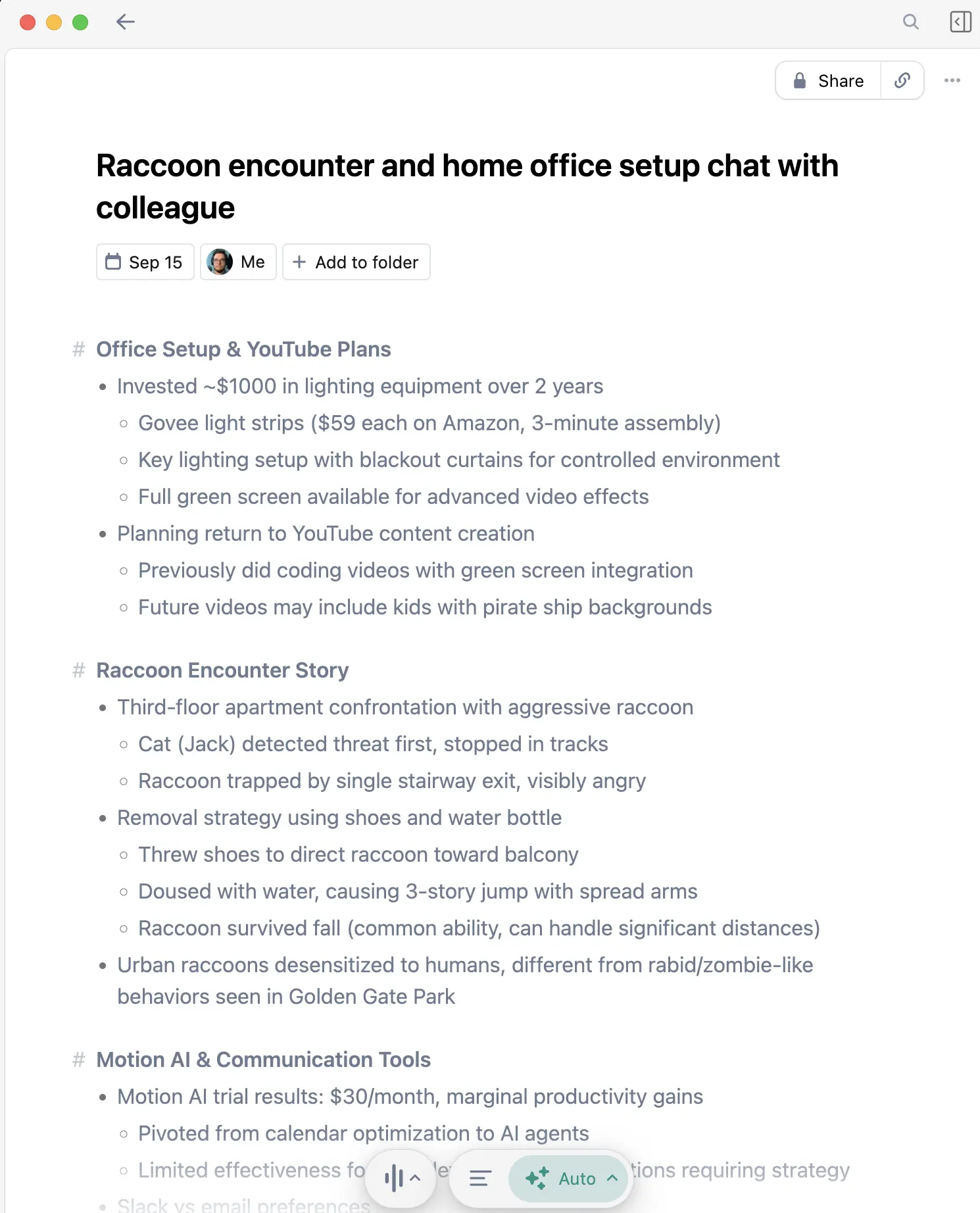
Whether you can't type (injury, disability, preference), don't want to type (meetings, interviews), or just want to be faster, there are excellent options for taking notes without a keyboard.
Here's the complete guide.
The Options
1. Automatic Meeting Capture
For meetings, the best option is automatic transcription.
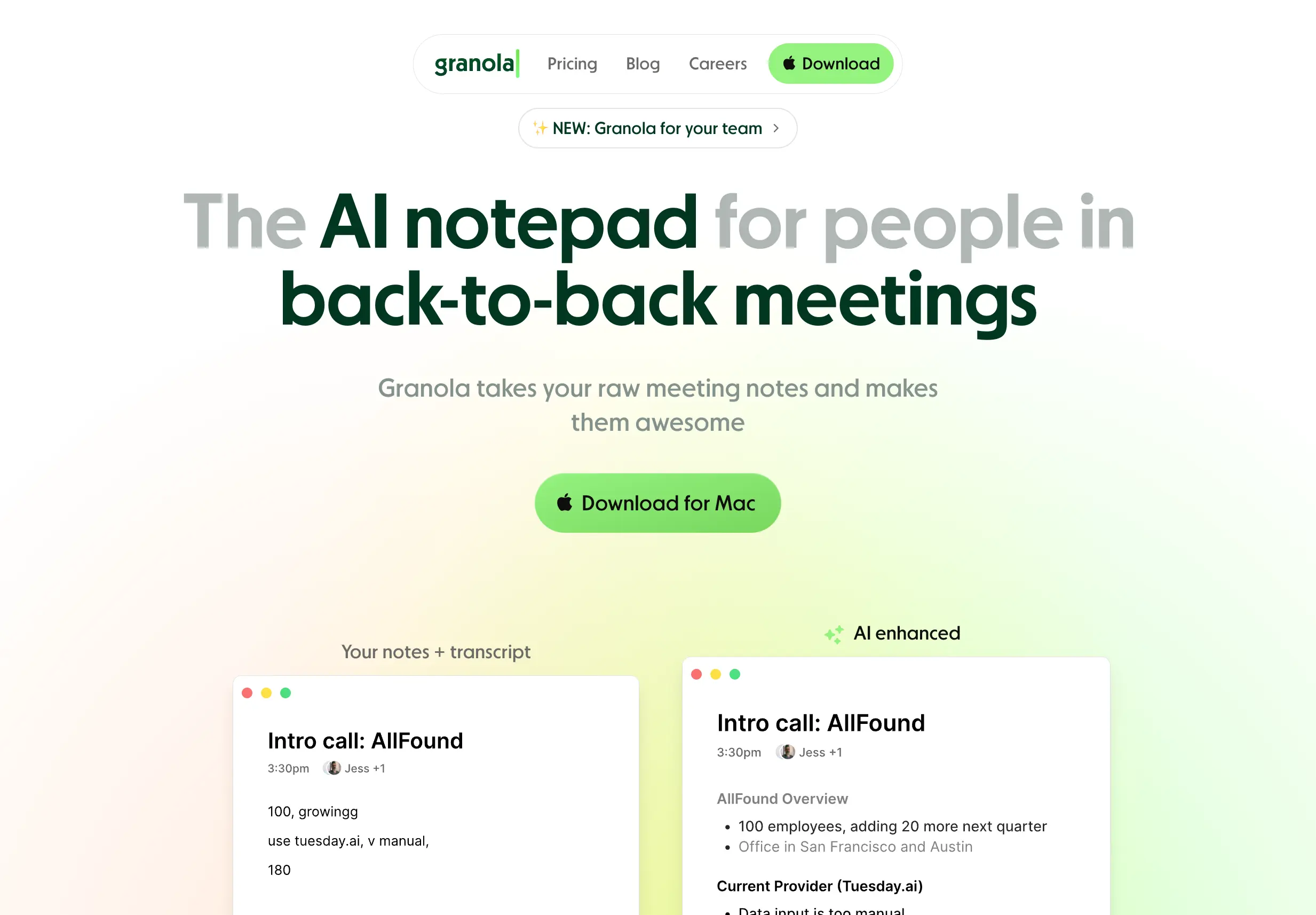
Granola captures any meeting—Zoom, Teams, phone calls, in-person—and creates notes automatically. You don't type, speak, or do anything. Just attend the meeting.
Best for: Video calls, phone calls, in-person meetings
2. Voice Dictation
For your own thoughts and notes, speak them.
WisprFlow turns your speech into text anywhere on your computer. Press a hotkey, speak, and text appears.
Best for: Personal notes, quick captures, documentation
3. Combination Approach
Use both:
- Granola for meeting capture (passive)
- WisprFlow for your own notes (active)
This covers virtually all note-taking scenarios without typing.
Method 1: Automatic Meeting Notes
How It Works
- Connect Granola to your calendar
- Join meetings normally
- Granola captures audio and creates notes
- Review notes after meeting
What You Get
- Full transcript
- Summary of key points
- Action items extracted
- Searchable archive
No Typing Required
- No manual note-taking during meeting
- No transcription after meeting
- No follow-up email drafting (use the summary)
Method 2: Voice Dictation

How It Works
- Press hotkey (anywhere)
- Speak your note
- Text appears where cursor is
Use Cases
- Quick thoughts and ideas
- To-do items
- Responses to messages
- Documentation
- Journal entries
Advantages Over Typing
- 3x faster than typing
- Works while walking/moving
- Hands-free operation
- Lower cognitive load
Comparison of Methods
| Scenario | Best Method | Tool |
|---|---|---|
| Video meetings | Auto capture | Granola |
| Phone calls | Auto capture | Granola |
| In-person meetings | Auto capture (mobile) | Granola |
| Quick personal notes | Dictation | WisprFlow |
| Long documents | Dictation | WisprFlow |
| Email responses | Dictation | WisprFlow |
| Ideas while walking | Dictation | WisprFlow |
Accessibility Considerations
For Mobility Limitations
Voice dictation removes the need for fine motor control required by typing. WisprFlow works with any microphone—built-in, headset, or specialized.
For Visual Processing Differences
Speaking is often easier than the visual-motor coordination of typing. The auditory-verbal path may be more natural.
For Temporary Injuries
Broken arm? RSI flare-up? Voice tools let you keep working while healing.
Getting Started
For Meetings
Try Granola - automatic capture, no action needed during meetings.
For Personal Notes
Try WisprFlow - speak anywhere, text appears.
FAQ
Can I really never type?
For most note-taking, yes. You might occasionally type for special characters or corrections, but 95%+ can be voice.
What about code or technical content?
Prose works great. Code and math are harder to dictate. Consider voice for documentation and typing for code.
Is the quality good enough?
Modern AI transcription is excellent. Both tools produce clean, usable text.
What about in quiet offices?
Use a headset with a noise-canceling microphone. Your voice goes directly to the mic, not through the room.
Typing is just one interface. Voice is often better.
How each tool turns speech into text
The useful difference is where the text appears and how much work remains afterward.
Traditional typing stays precise and familiar for short edits.
WisprFlow dictates into any app with AI formatting, and it is free to try.

Discussion
Giscus