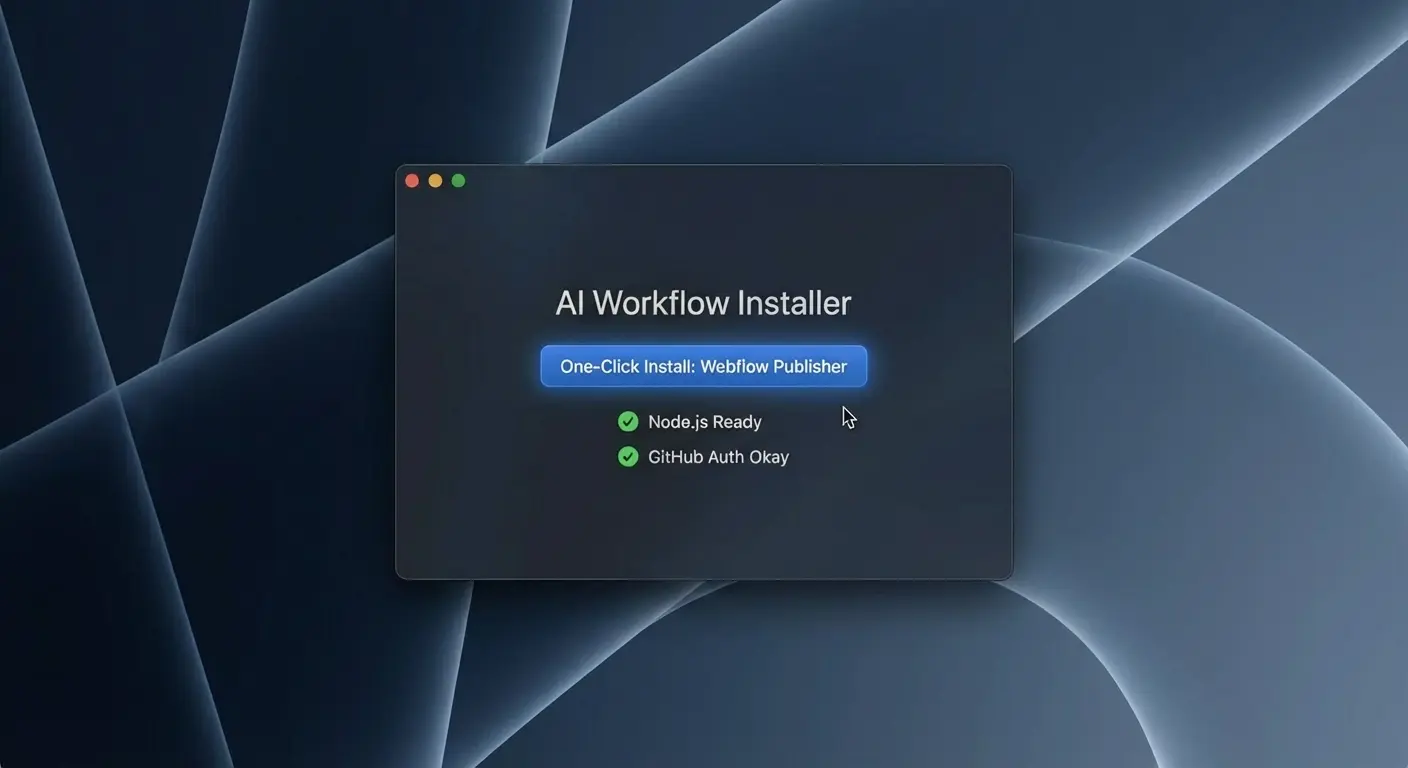
I've been experimenting with a different approach to getting AI workflows into the hands of my teammates: instead of writing yet another setup guide with terminal commands and JSON file edits, I built a native macOS app that handles it all with a few clicks.
The Problem: Tribal Knowledge and Terminal Phobia
Most teams have a few people who figure out useful AI workflows—prompt chains, MCP server setups, custom skills. But that knowledge stays locked in DMs, personal notes, or scattered documentation. When it's time to share, we default to "just follow these steps":
- Clone this repo
- Run these npm commands
- Edit this JSON config file
- Set these environment variables
- Restart Claude Desktop
For engineers, this is routine. For the GTM team member who wants to stage a blog post via chat? It's a wall of unfamiliar tooling.
The Experiment: A Native Installer
My north star was simple: nobody should need to touch the terminal or edit JSON just to get a working AI workflow. So I built a native Swift app that handles the entire provisioning process.
The app is purely a setup utility. It doesn't run the MCP servers itself—it automates cloning, building, and configuration so everything works with Claude Desktop and Claude Code.
What It Executes
Under the hood, the installer runs standard shell commands:
# Auth check
gh auth status

# Fetch repo metadata
gh repo view workos/<repo> --json description

# Clone to skills directory
git clone git@github.com:workos/<repo>.git ~/.claude/skills/<repo>

# Install dependencies
cd ~/.claude/skills/<repo> && npm install
Then it edits ~/Library/Application Support/Claude/claude_desktop_config.json to register the new local server path.
No Credential Storage
The app never handles or stores GitHub credentials. It piggybacks entirely on the installed gh CLI and the system's SSH agent. If someone needs to log in, clicking "Log In" opens Terminal and runs gh auth login there—keeping the actual auth flow in a trusted context that supports 2FA/SSO.
The Architecture
Built with Swift and SwiftUI, the app avoids Electron's overhead and feels native:
AIWorkflowInstaller/
├── Sources/
│   ├── AppModel.swift      # Core logic and state
│   ├── Shell.swift         # Shell command execution
│   ├── ConfigFile.swift    # JSON handling for claude_desktop_config.json
│   ├── ContentView.swift   # Main UI layout
│   ├── PrerequisiteView.swift  # System status dashboard
│   └── SkillCard.swift     # Individual skill UI component
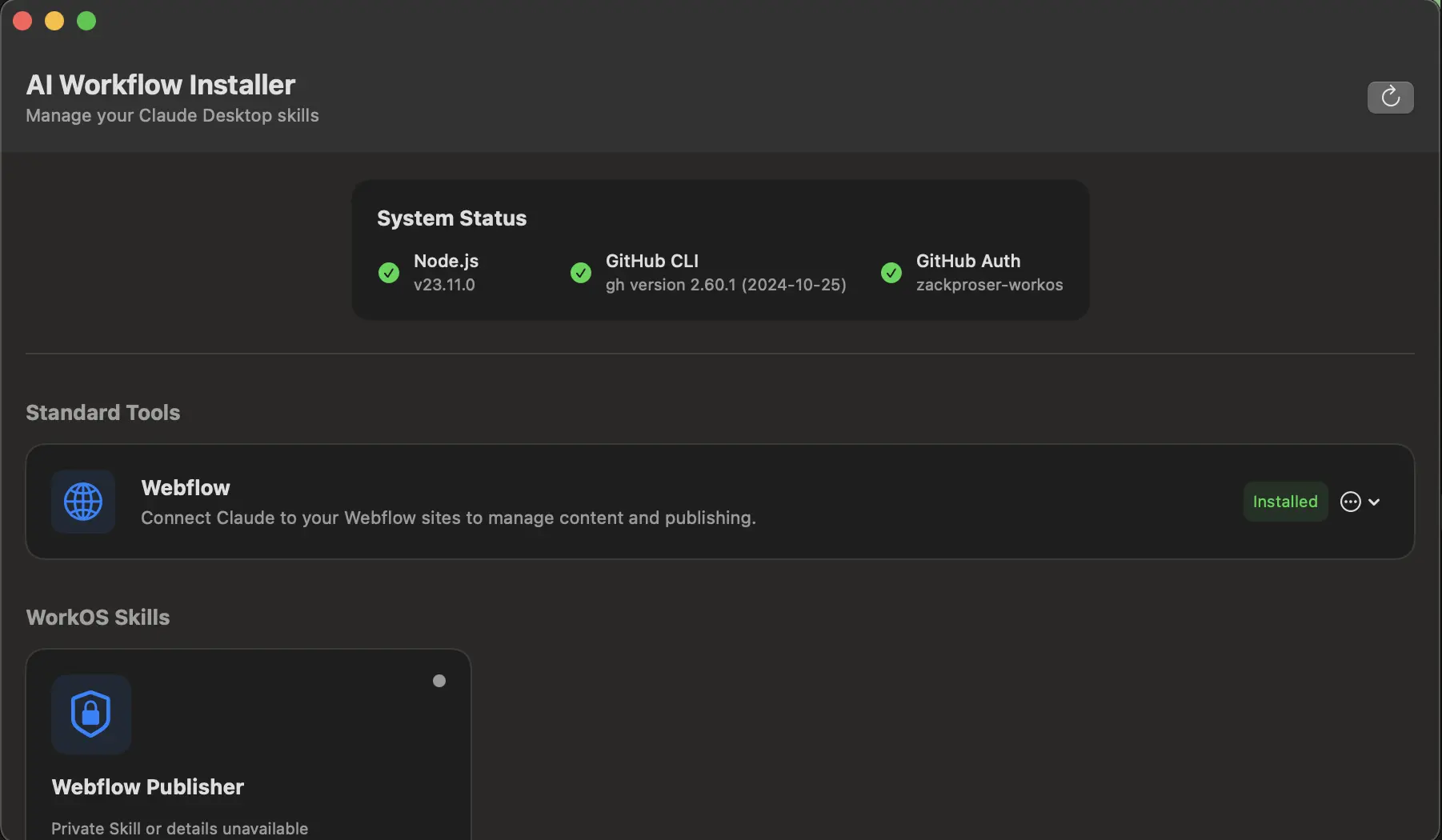
The UI shows a system status dashboard at the top—Node.js, GitHub CLI, and GitHub Auth status—so users immediately know if they're ready. Below that, available skills are displayed as cards with one-click install buttons.
Why SwiftUI Is Perfect for This
Here's an interesting meta-observation: current AI models are remarkably good at writing SwiftUI code. The declarative syntax maps well to how LLMs reason about UI—describe what you want, not how to render it. I built most of this app through conversation with Claude, iterating on layouts and state management in real-time.
SwiftUI apps are also significantly lighter weight than traditional Objective-C or AppKit applications. The entire installer compiles to a ~2MB binary. There's no runtime to bundle, no framework dependencies to ship. Compare that to an Electron app that would balloon to 150MB+ just to wrap some shell commands in a GUI.
The trade-off is platform lock-in—this only runs on macOS. But for an internal tool targeting Mac users, that's not a trade-off at all. It's a feature. The app feels native because it is native: proper menu bar integration, system notifications, dark mode support, all for free.
For teams considering building internal tooling, SwiftUI has hit a sweet spot. The learning curve has flattened, AI assistance makes iteration fast, and the resulting apps are small, fast, and feel right at home on macOS.
Status Detection
The app tracks multiple states for each skill:
- Installed: Config and files both exist
- Not Installed: Neither exist
- Missing Files: Config exists but files are gone
- Not In Config: Files exist but not registered
This handles edge cases like partial installs or manual config edits gracefully.
Why Native vs. Script?
Someone asked me: why does this need to be a signed installer vs. a script?
The answer is user experience. A script is still terminal-bound. It requires explaining what a terminal is, how to navigate to a directory, how to make a script executable. A native app is just... an app. Double-click, see status, click install.
The visual feedback matters too. The prerequisite dashboard shows green checkmarks or orange warnings. Progress indicators show when something is installing. Error messages appear in context, not buried in terminal output.
What It Can Install
Right now, the installer handles:
- Webflow MCP Server - The same result as following the official setup guide, but in one click
- Internal company skills - Like our claude-skill-webflow-publish repo that lets Claude stage blog posts to Webflow
The catalogue is extensible. Adding a new skill just means adding an entry to workOSSkills:
private let workOSSkills: [KnownSkill] = [
    KnownSkill(
        owner: "workos",
        repo: "claude-skill-webflow-publish",
        name: "Webflow Publisher",
        icon: "lock.shield"
    )
]
The Bigger Picture
If this experiment bears fruit, the natural extension is configuring all necessary workflows for the GTM team. Image generation skills, content publishing workflows, data analysis pipelines—anything we've codified as a Claude skill could be one-click installable.
The source code for every installed skill remains fully visible in ~/.claude/skills/. Nothing is hidden. Engineers can inspect, modify, and improve the workflows. Non-engineers can just use them.
Security Considerations
A few design decisions keep this approach reasonable:
- No credential storage: The app never sees passwords or tokens
- Standard git clone: Source code lands in the user's home directory, fully inspectable
- SSH-based auth: Uses existing local SSH keys through the system agent
- Signed binaries: We're requesting an Apple Developer certificate to code-sign the app, eliminating "unidentified developer" warnings
The Signing Question
For internal distribution, you have several options with different trade-offs:
Option 1: Unsigned (Current State) Users right-click and select "Open" to bypass Gatekeeper. Works, but feels janky. Every new user has to know the workaround, and IT departments rightfully get nervous about training people to bypass security warnings.
Option 2: Developer ID Signing Requires an Apple Developer account ($99/year). You sign the app with your Developer ID, and macOS trusts it automatically. This is the "professional" path—no warnings, no workarounds. The downside is managing certificates, provisioning profiles, and the annual renewal.
Option 3: Ad-Hoc Signing Sign with a local certificate that's only trusted on machines where you've manually installed the certificate. Good for small teams where you control all the machines. Doesn't scale.
Option 4: Enterprise Distribution If your company has an Apple Business account, you can distribute apps internally without App Store review. This is the enterprise-grade solution but requires organizational buy-in and proper MDM infrastructure.
For our use case, Developer ID signing is the sweet spot. The $99/year is negligible for a company, it eliminates all friction for end users, and it signals that we take the tool seriously. The app runs shell commands on people's machines—the least we can do is sign it properly.
Notarization is the next level up. Even with Developer ID signing, Apple recommends notarizing apps—submitting them to Apple for automated security checks. This adds another layer of trust and prevents the "Apple checked it and it's safe" warning on first launch. For internal tools, this might be overkill, but it's worth knowing the option exists.
The Code
The installer lives in a private repo, but the architecture is straightforward SwiftUI. If you're interested in building something similar, the key patterns are:
- Use
Processor a shell wrapper to execute CLI commands - Parse and modify JSON configs with
Codable - Check prerequisites on launch and surface status clearly
- Handle partial states (files exist but config doesn't, etc.)
What's Next
The current version works for our immediate use case. Next steps include:
- Getting the Apple Developer certificate for code signing
- Adding more internal skills to the catalogue
- Potentially open-sourcing the installer framework for others building similar tools
The core insight is that AI workflows are only valuable if people actually use them. Removing the terminal barrier opens these tools to everyone on the team.

Discussion
Giscus