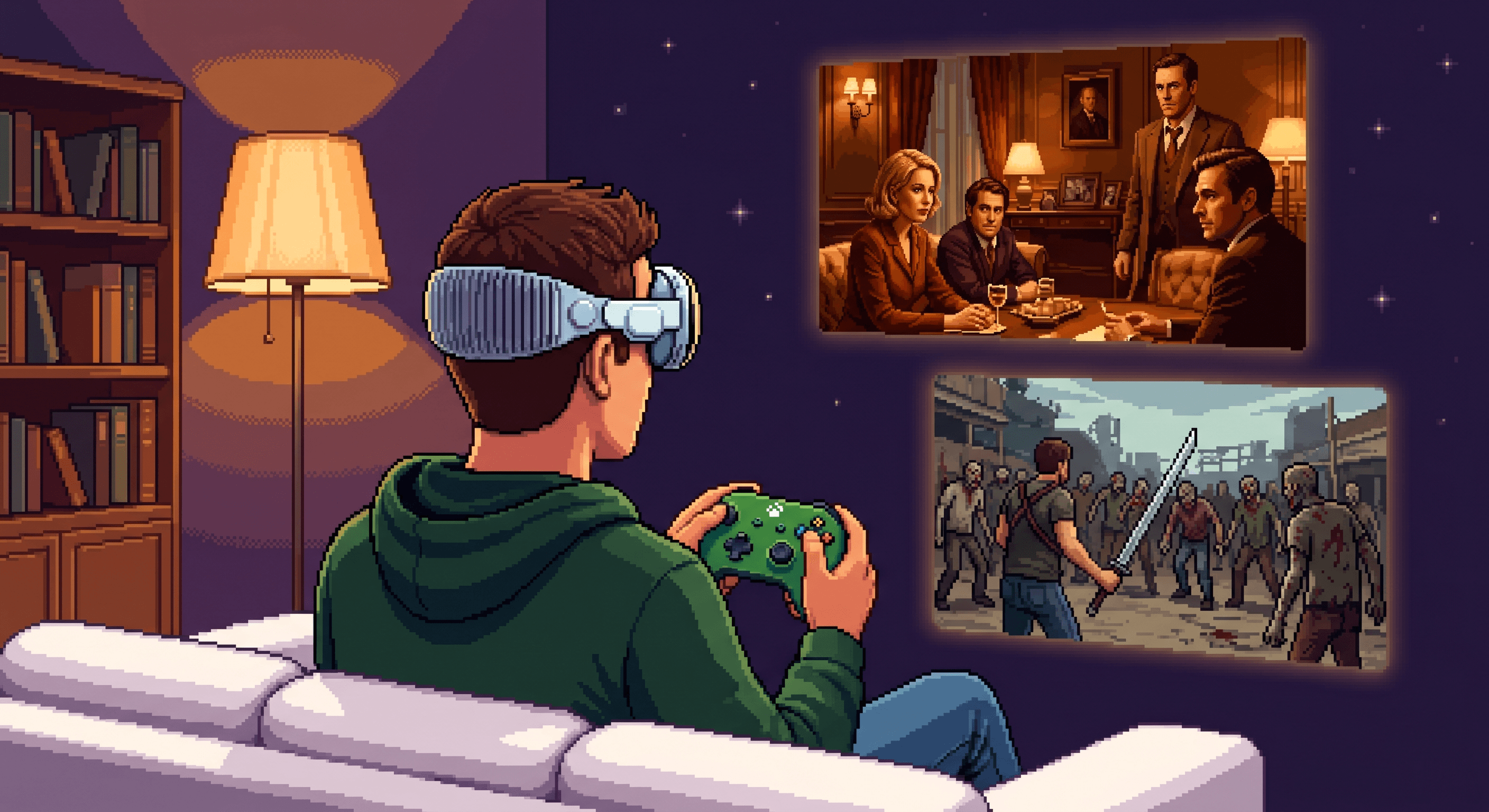
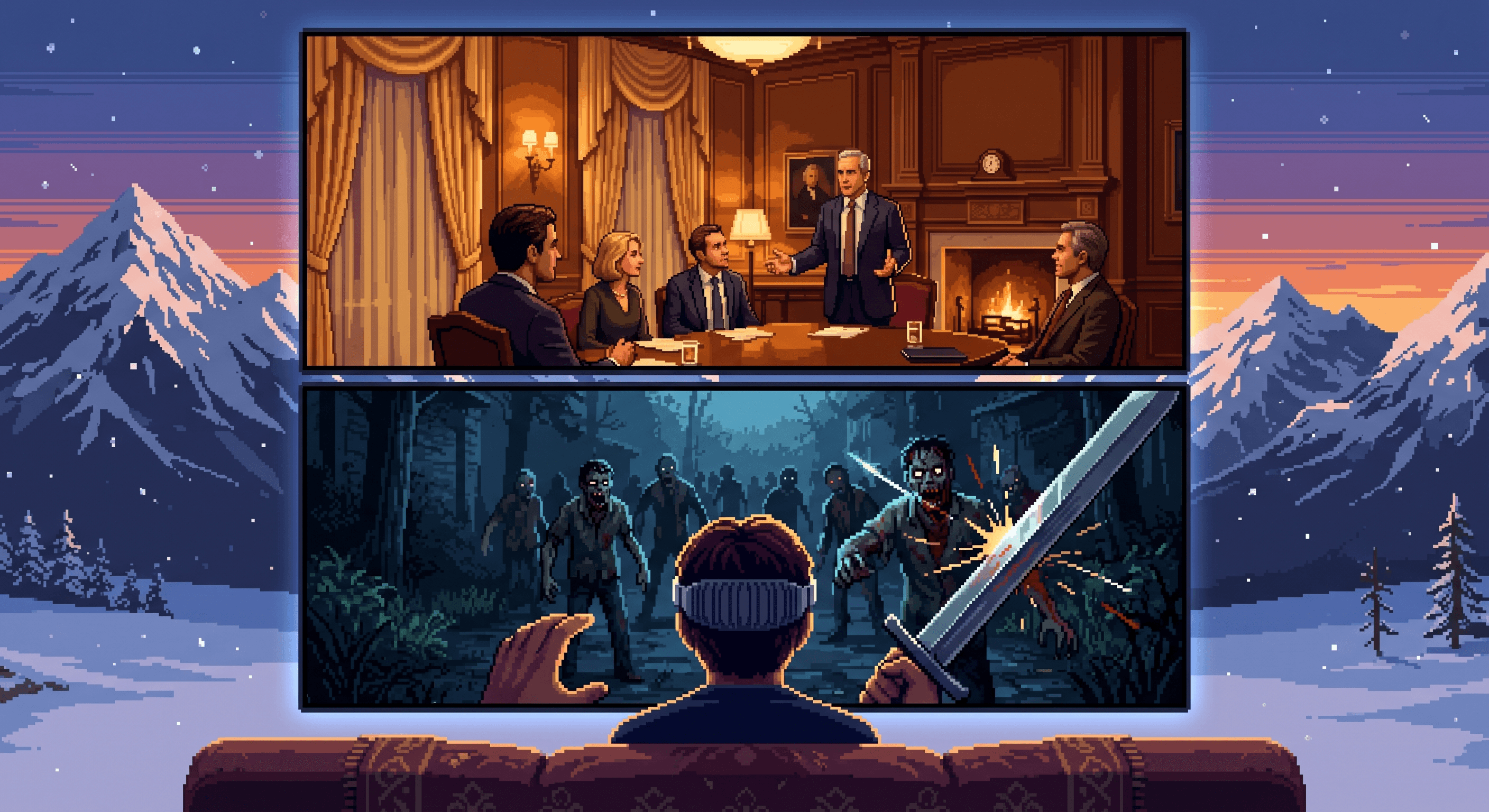
The setup I wanted: Vision Pro on my face, a wireless controller in my hands, Steam running somewhere in the house, and Apple TV shrunk and floating above the game. Zombies below. A drama above. Exactly the kind of sensory control my brain needs to actually relax.
Getting there took weeks of dead ends. Here's what I learned, including every wrong turn.
The Wrong Turn: Steam Deck as the Host
I worked on this in fits and starts — late nights after the kids were asleep, stolen hours on weekends. I should have started by reading Valve's own network documentation, but I didn't. I jumped straight into experimenting and spent weeks on dead ends before circling back to what the docs actually say. Haste makes waste!
My first instinct was to use the Steam Deck as the streaming host. It's right there on my network, it runs Steam games natively — how could it not work?
It didn't work. Constant frame drops. Input lag that made every shooter feel like steering with a delay.
The problem is architecture. The Steam Deck renders games for its own screen. When you use it as a streaming host, you're asking it to encode video for the stream while simultaneously running the game. That competition is brutal and constant on a device this tightly integrated.
Steam's own network settings documentation recommends a wired connection for the host and notes that wireless-to-wireless setups cause choppy performance. The Deck was compounding every problem I hadn't diagnosed yet.
Why the iPad Steam Link App Fails on Vision Pro
There was a second layer to the failure I didn't understand at first.
Most Steam Link apps on Vision Pro are just iPad apps running in compatibility mode. Apple allows most iPad apps to run unmodified on Vision Pro — they're essentially iPadOS apps running in a window with iPad SDK restrictions. The problem is that apps built for iPad inherit those restrictions and can't declare the network entitlements a streaming app requires.
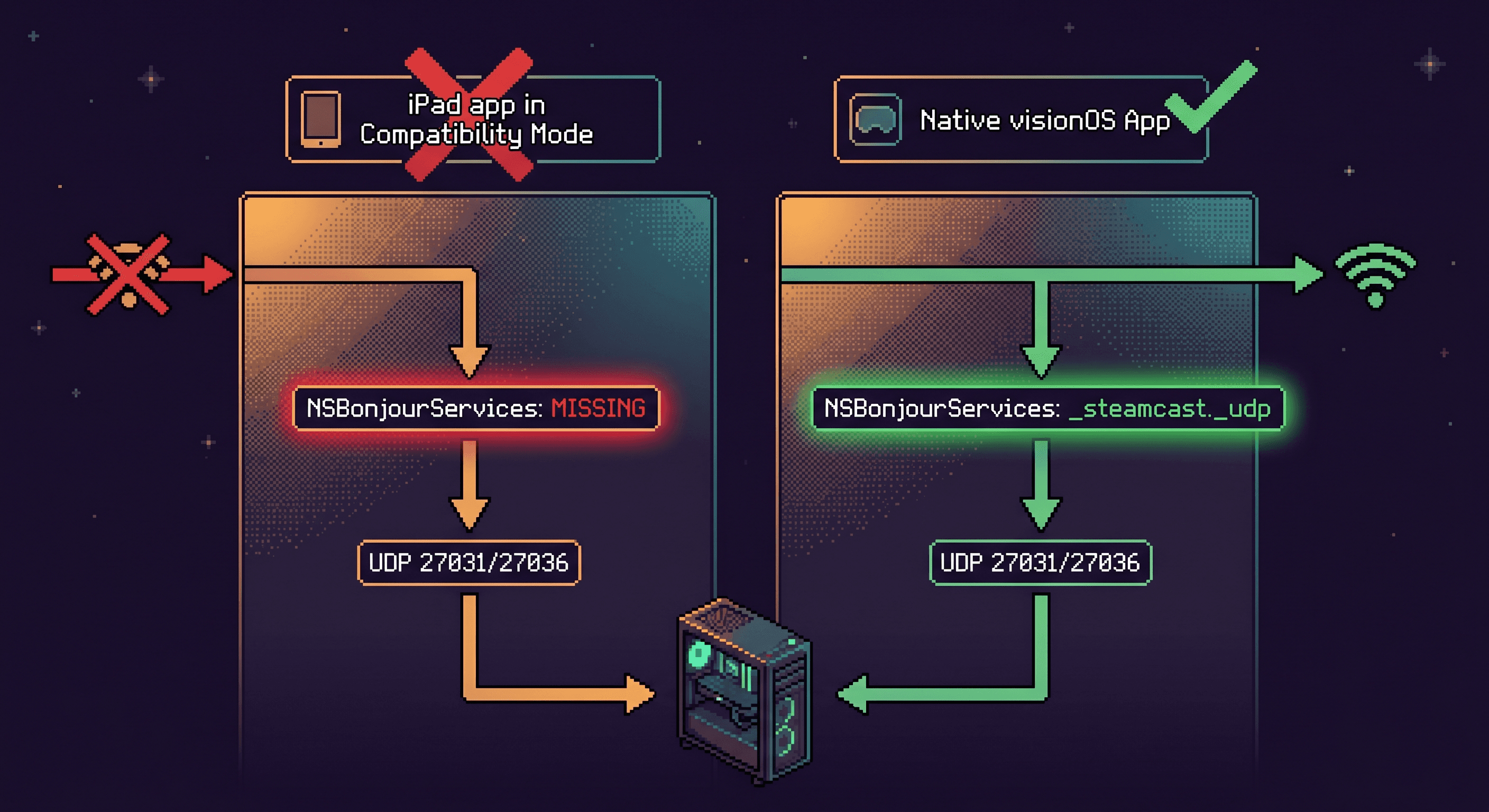
When a native visionOS app wants to do local network game streaming, it needs to declare the specific Bonjour service types it's using in its NSBonjourServices Info.plist entry — specifically _steamcast._udp for Steam Remote Play. It also needs NSLocalNetworkUsageDescription to explain why it needs local network access. Steam Remote Play uses UDP ports 27031 and 27036 for the video/audio/game data stream.
The iPad version of Steam Link, running in compatibility mode, doesn't have access to these declaration mechanisms the same way a natively-compiled visionOS app does. The app can try to bind to those UDP ports, but it can't properly advertise itself via Bonjour, and it can't trigger the local network permission prompt in a way that gives it the stable priority access it needs. Vision Pro's network stack then interprets this as a failed handshake, starts cycling Wi-Fi connections aggressively, and the stream stutters.
Right around the time I was deep in this, Valve released a native visionOS beta of Steam Link — built specifically for Vision Pro using the visionOS SDK, with the proper Bonjour service declarations and network entitlements. I grabbed the TestFlight beta immediately. The difference was immediate: no cycling, no stuttering, a clean green connection indicator.
What I didn't realize yet was that the app wasn't the only bottleneck. The architecture was still wrong. More on that below.
The Fix: A Full Gaming Rig as the Host
The host machine needs to be a real computer. Not a handheld. A PC with a dedicated GPU doing the heavy lifting — running the game and encoding the video stream simultaneously.
I had one already: an older Windows build from about eight years ago. GeForce GTX 1080 Ti, plenty of RAM, a large platter drive for the game library. That GPU is still an absolute workhorse. It chews through AAA titles like Warhammer 40,000: Space Marine 2 without breaking a sweat, and it encodes like a champion for Steam Link.
The moment I moved the host to that rig, everything changed.
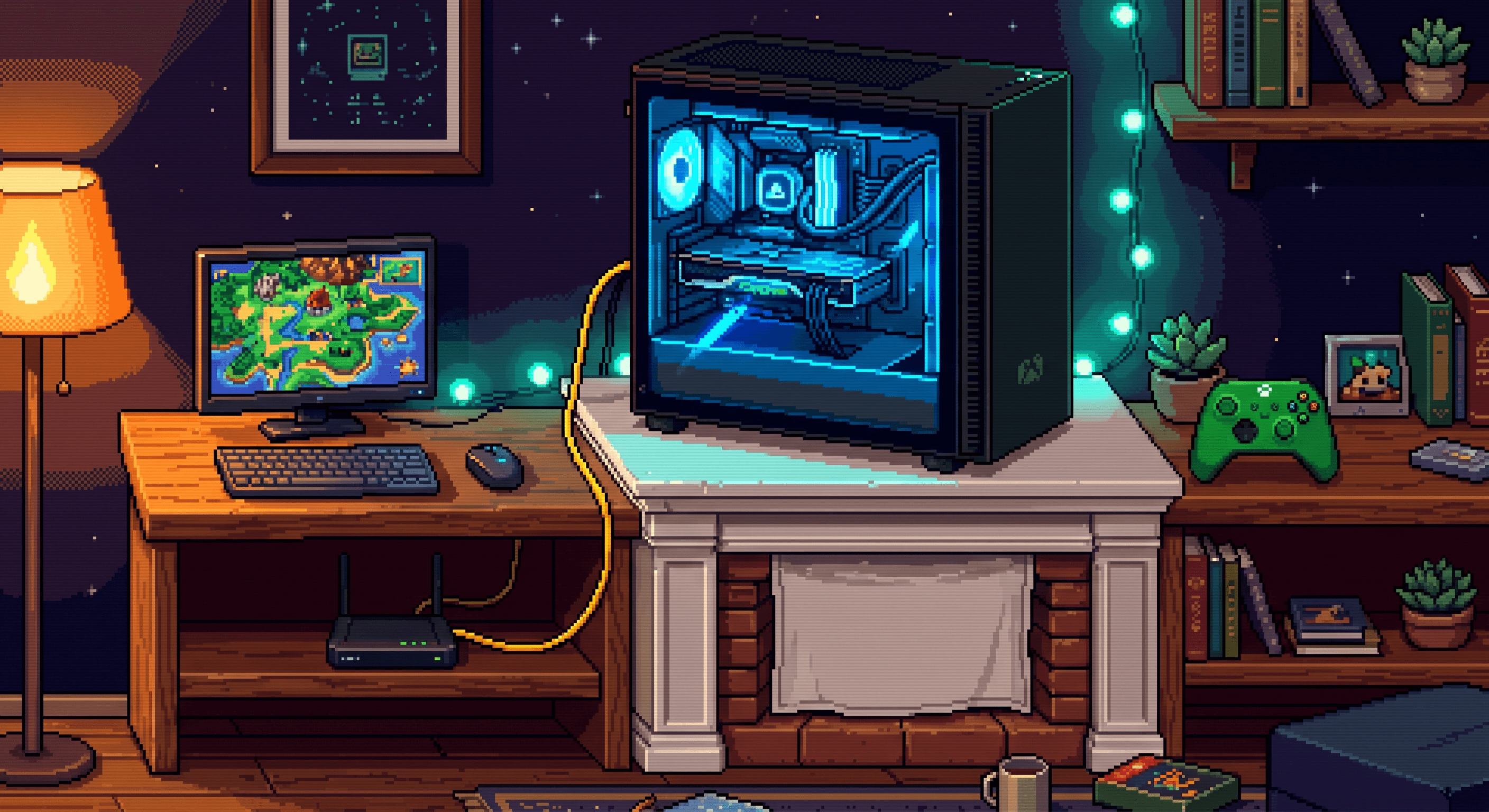
The gaming rig connects to your router via Ethernet. Not Wi-Fi. Ethernet.
I found the spot: the gaming rig lives on my mantlepiece above the fireplace now. The access point — a small black router — sits on a wooden shelf to the left. An ethernet cable runs from the access point, through the wall, up to the back of the PC. I grabbed a small monitor, a wireless keyboard, and a wireless mouse for the rig so I could boot it, update Steam, and install the Steam Link client for Windows — which is a separate download from Steam, and one I hadn't done until this point.
Once Steam Link for Windows was running on the rig, I launched it, went to Vision Pro, opened the native visionOS Steam Link beta, and watched it find the host machine on the network. The connection indicator turned green: good connection, stable link.
Steam's own documentation is unambiguous: wired connections for the host produce the best results. The host machine needs a clean, stable 1 Gigabit link to the router. Once it was working, I disabled the rig's Wi-Fi radio entirely. One network path. No competition.
Wi-Fi extenders were a complete red herring. I bought two of them before I figured out what was actually wrong. The problem wasn't signal strength to Vision Pro — it was that the host machine itself was trying to communicate over a shared, contended Wi-Fi link while simultaneously encoding video.
The Controller: Vision Pro is the Client
This was the realization that completed the architecture. You must connect the Xbox controller directly to Vision Pro over native Bluetooth — there is no alternative configuration that works correctly. The Xbox controller does not connect to the gaming rig, the Steam Deck, or any intermediary device. It connects to Vision Pro, because Vision Pro is the client: it collects your input and sends it over the network to the host. The host runs the game and streams video back. That direct Bluetooth link between controller and Vision Pro is what makes the whole pipeline clean.
Input path: controller → Vision Pro → network → gaming rig.
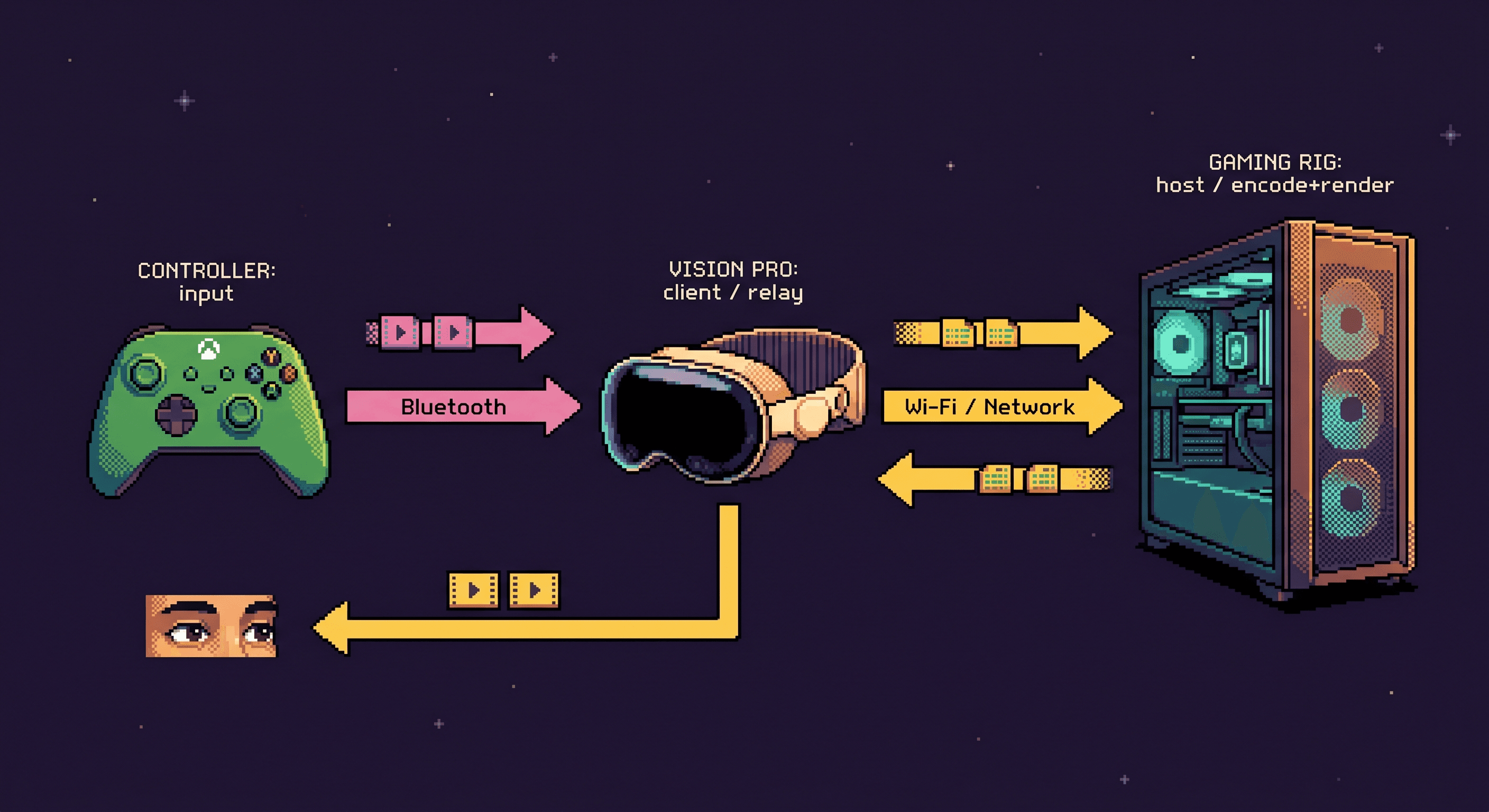
To pair: put your Xbox controller in pairing mode, open Settings on Vision Pro → Bluetooth, and pair it. Steam Link on Vision Pro will automatically detect it as your input device.
Vision Pro Environments: The Mental Cocoon
Once everything was working, I started exploring what else Vision Pro could do with the gaming rig as the anchor.
The Environments feature lets you replace your entire surroundings with a immersive space — snowy mountain peaks at golden hour, a serene desert at night, the surface of the moon. When I pair the gaming rig streaming a game with a Vision Pro environment, something unexpected happens: the game plays on the virtual screen while the room around me becomes somewhere else entirely.
I use the snowy peaks most. There's something about the combination — a visceral AAA game running underneath, a drama floating above, and cold mountain air implied in my peripheral vision — that creates a complete mental cocoon. The game pulls my focus. The show gives me somewhere to look when I need a break from aiming. The environment wraps everything in calm.
After running hot all day — parenting, working, managing a household — this is what my nervous system needs. Two hours in the snowy peaks, killing things in a game, with something quiet playing above. It's specific, but if it resonates, you know exactly what I mean.
This is the decompression version of something I wrote about in Training Claude to Compensate for My Neurological Patterns — that post covers the other direction: sometimes to concentrate I need more stimulation, not less. A tiny Netflix window open alongside my code, the blue lights, the cold room. Background noise and sensory input that keeps my brain from looping while it works. The cocoon here is the inverse: instead of using external input to steady a working brain, I'm using it to give a resting brain somewhere to go that isn't painful.
The Result
Zero lag. Zero dropped frames. A modern AAA title running in 4K on a massive virtual screen, with Apple TV floating above it, in an environment of your choosing.
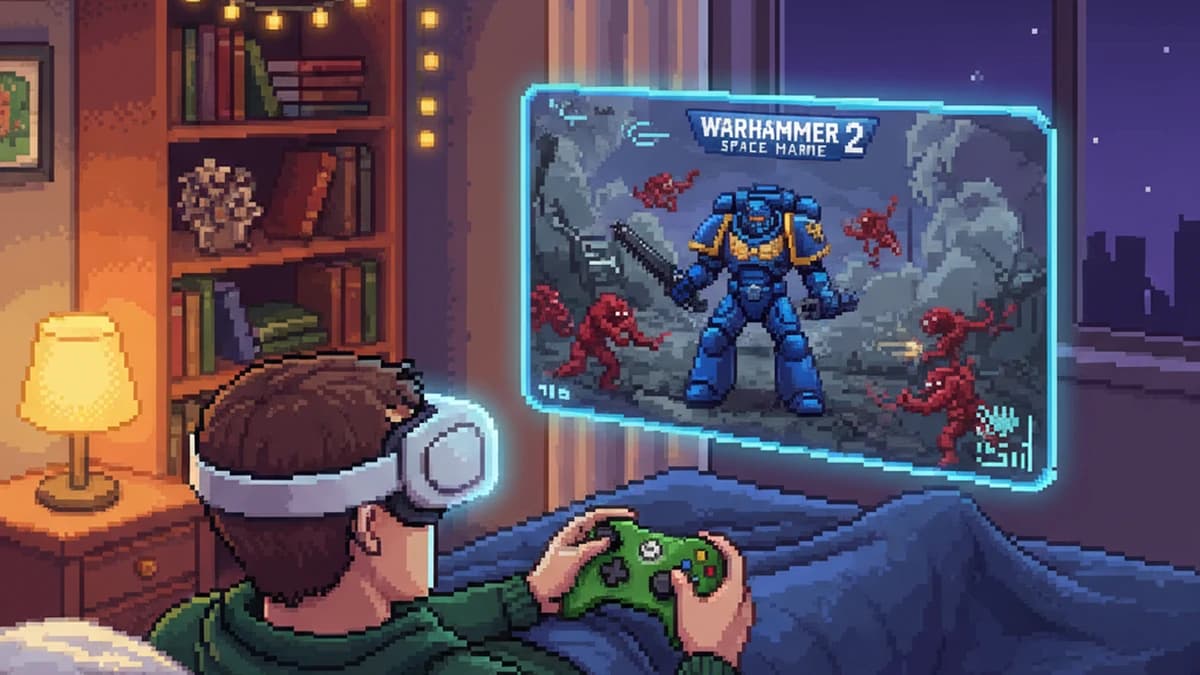
Complete Nirvana: lying in bed upstairs, Vision Pro on my face, Xbox controller in my hands, playing Space Marine 2 on a massive virtual screen while the host PC sits downstairs doing the actual work. The Vision Pro sends my inputs over Wi-Fi to the host, the host encodes the game and streams it back, and the whole pipeline hums with no perceptible lag. The network is doing exactly what it needs to do — backhauling input upstream and hauling video downstream — and that's all there is to it.
The Complete Setup
1. A Windows PC or Mac as your streaming host
A dedicated GPU that can both run the game and encode the video stream simultaneously. The GTX 1080 Ti in my eight-year-old build handles this without flinching.
2. Place the rig near your router, wire it with Ethernet, then disable its Wi-Fi
The rig lives on my mantlepiece with the access point on a shelf nearby, connected by ethernet through the wall. Wired only. Disable the Wi-Fi radio once it's working.
3. Install Steam Link for Windows on the host
This is a separate download from Valve. Install it, launch it, and keep it running on the host machine.
4. A wireless Xbox controller paired to Vision Pro via Bluetooth
Pair the controller directly to Vision Pro over native Bluetooth. Vision Pro is the client — it takes the input and sends it over the network to the host. There is no substitute for this direct link.
5. Apple Vision Pro with the native visionOS Steam Link beta
Join the beta via TestFlight. The native visionOS app passes the network priority flags that iPad compatibility mode apps can't.
6. Your games running on the host, controlled from Vision Pro
Connect to your host from Steam Link on Vision Pro, launch a game, and play. Optionally, set a Vision Pro Environment for the full cocoon experience.
What Didn't Work (And Why)
| Attempt | What Went Wrong |
|---|---|
| Steam Deck as host | Competes with game for GPU encoding resources; can't maintain stable frame delivery |
| iPad Steam Link app in compatibility mode | Can't pass elevated network priority flags on visionOS; causes Wi-Fi cycling and stuttering |
| Wi-Fi for host machine | Contended wireless link creates latency that compounds through the pipeline |
| Wi-Fi extenders | Red herring — problem was host machine connectivity, not Vision Pro signal strength |
| Controller paired to something other than Vision Pro | Not a configuration option — the controller must pair directly to Vision Pro over native Bluetooth |
What Actually Matters
The lag-free experience requires exactly three things: a real gaming PC as the host, that host wired to Ethernet with Wi-Fi disabled, and the controller paired directly to Vision Pro. Everything else follows from those foundations.
The native visionOS Steam Link beta matters too — without it, you're running the iPad app in compatibility mode, and it simply can't maintain the network handshake that stable streaming requires. Use the native beta.
Get those four things right, and you can spend two hours in the snowy peaks with a game running underneath and a show floating above, and come back feeling like you actually rested.
In the end, every piece was necessary — but if I'd sat down and designed it from first principles at the start, the path would have been a lot smoother.

Discussion
Giscus