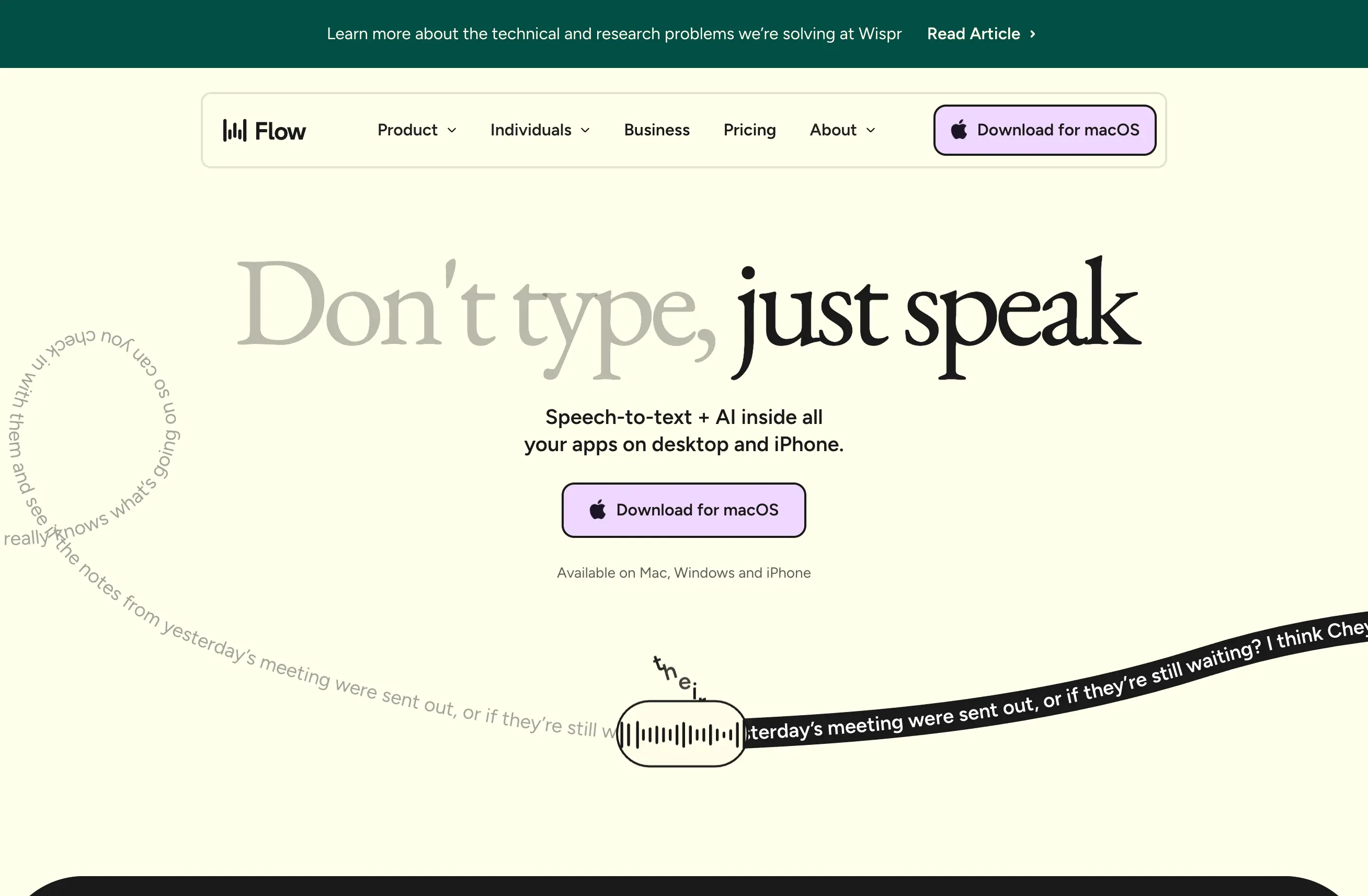
You want to dictate into Slack. Or VS Code. Or your terminal. Or that weird internal tool your company built. But the app doesn't have voice typing, and Mac's built-in dictation is unreliable. Here's the actual solution.
The Problem: App-Level Voice Support Is Rare
Most applications don't build voice typing into their product. They rely on the OS to handle it, which means you're stuck with whatever Apple ships. And Apple's dictation, while decent for quick notes, falls apart for professional use.
The result: you can technically dictate anywhere on Mac using the system feature, but the accuracy is low enough that you spend more time fixing mistakes than you save.
The Solution: System-Level Voice Input
The trick is to use a voice input tool that works at the system level — not inside any specific app. WisprFlow does exactly this. It sits between your microphone and whatever text field has focus, injecting transcribed text directly.
This means it works in:
- Slack — messages, threads, DMs
- VS Code / Cursor — code comments, commit messages, search
- Terminal — commands, git messages
- Notion — documents, databases, comments
- Google Docs — drafting, editing
- Any web form — support tickets, CRM entries, email
- Literally anything with a text cursor
No plugin required. No API integration. No app-specific setup.
How It Works
- Install WisprFlow — it runs as a menu bar app on macOS
- Set your hotkey — I use a quick double-tap, but you can configure whatever feels natural
- Click into any text field — in any app
- Hold your hotkey and talk — WisprFlow captures, transcribes, and injects the text
- Release and keep working — the text appears as if you typed it
The transcription happens in real-time with AI-powered cleanup. Filler words get stripped, punctuation gets added, and technical terms stay accurate.
Why This Beats Mac Dictation
Mac's built-in dictation technically works in most apps, but:
- It times out after pauses
- Accuracy degrades with technical language
- No cleanup or post-processing
- Can't handle code-related symbols well
- Stops working randomly and needs to be restarted
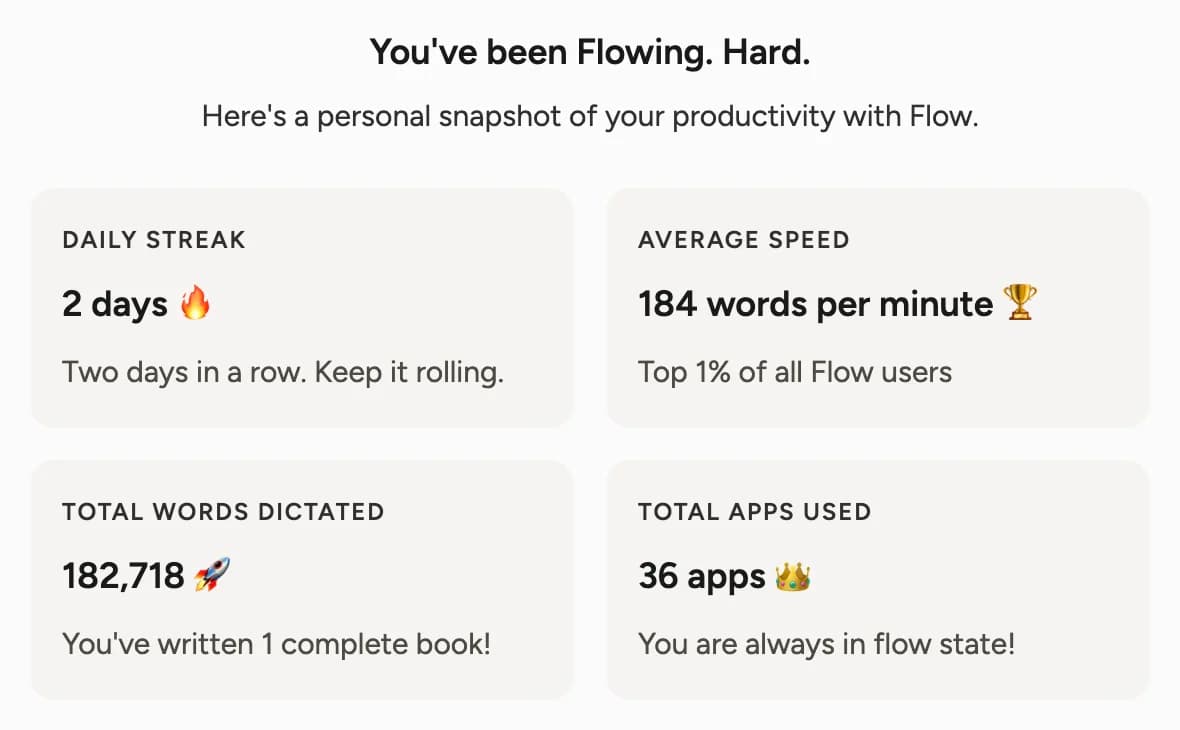
WisprFlow solves all of these. I regularly dictate at 184 WPM — top 1% of all Flow users — with accuracy that requires almost no correction.
Real Examples from My Workflow
Morning standup in Slack: Instead of typing out my update, I hold my hotkey and talk through what I did yesterday, what I'm doing today, and any blockers. 30 seconds of talking replaces 3 minutes of typing.
Code documentation: I dictate docstrings and comments directly in Cursor. WisprFlow handles the technical terms (API endpoints, function names, library references) surprisingly well.
Email responses: Long email threads that would take 10 minutes to compose get dictated in 2 minutes. The AI cleanup means the output reads like I carefully typed it.
Git commit messages: Quick, descriptive commit messages dictated right in the terminal. No more lazy "fix stuff" commits because it's too annoying to type a proper message.
Setup Takes 2 Minutes
Download WisprFlow, install it, set your hotkey, and you're done. It works immediately in every app on your Mac. No configuration per app, no permissions to grant (beyond microphone access), no plugins to install.
If you've been frustrated by Mac's dictation limitations, this is the fix.
How each tool turns speech into text
The useful difference is where the text appears and how much work remains afterward.
Traditional typing stays precise and familiar for short edits.
WisprFlow dictates into any app with AI formatting, and it is free to try.

Discussion
Giscus