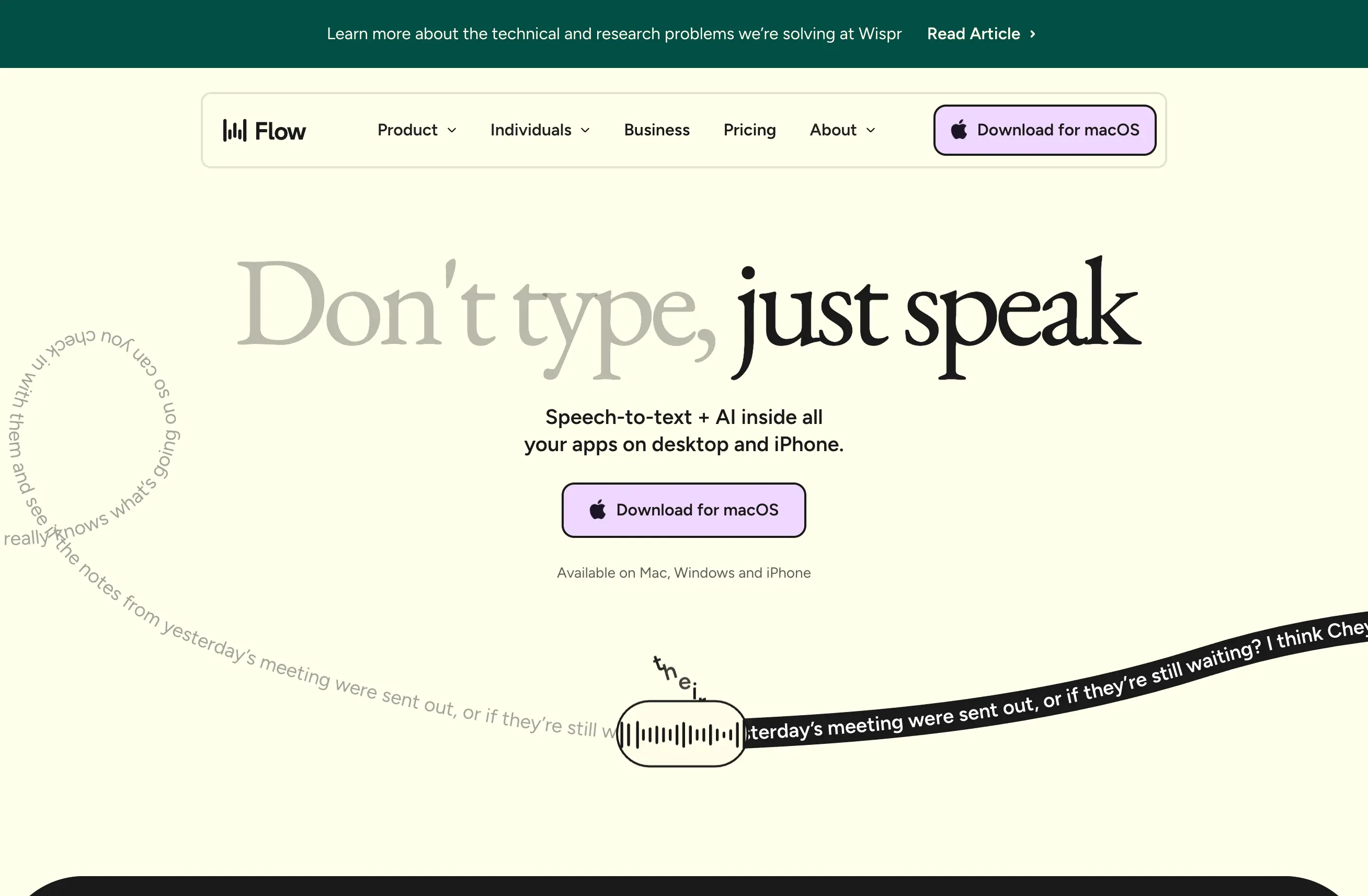
VS Code and Cursor don't have built-in voice typing. But you can add it in 2 minutes — and it changes how you write documentation, commit messages, comments, and even how you interact with AI coding assistants.
The Setup
WisprFlow works at the macOS system level. Any text field in any app — including VS Code and Cursor — gets voice typing automatically. No extension needed.
Install it, set a hotkey, and you can dictate anywhere your cursor is blinking.
Where Voice Typing Shines in a Code Editor
Documentation and comments. This is the biggest win. Nobody likes writing docstrings. Nobody likes writing README files. But if you can just talk through what the function does while looking at the code, suddenly documentation gets written.
Commit messages. Good commit messages explain why, not just what. That takes more words than most people want to type. Dictating a descriptive commit message takes 5 seconds: "Refactor the authentication middleware to use the new session management system. This fixes the race condition reported in issue 423."
AI assistant prompts. If you're using Cursor's AI features or Claude Code, your prompts benefit enormously from being detailed. Voice lets you give full context in seconds instead of typing a truncated version.
Code review comments. Thorough code reviews are a gift to your team. Dictating your feedback means you actually explain your reasoning instead of leaving cryptic one-liners.
The Developer Workflow
Here's my actual daily pattern:
- Morning standup notes — dictate what I'm working on directly into a markdown file
- Code comments — explain complex logic by talking through it while reading the code
- Commit messages — detailed, descriptive messages dictated in the terminal's git interface
- PR descriptions — full context about what changed and why, dictated in seconds
- Slack threads — technical discussions about the code I'm looking at
The key insight: voice typing doesn't replace coding. It replaces all the writing about code that takes up 30-40% of a developer's day.
Technical Terms Work
WisprFlow handles developer vocabulary well. API, REST, GraphQL, TypeScript, React, useState, middleware, webhook — these transcribe correctly because the AI model understands technical context.
I regularly dictate sentences like "the useEffect hook needs a cleanup function to unsubscribe from the WebSocket connection" and it comes out right.
Speed for Developers
Most developers type 60-80 WPM. I dictate at 184 WPM. For the non-code writing that fills your day — documentation, messages, reviews, prompts — voice is 2-3x faster.
Try WisprFlow and see how much of your day was actually spent typing prose, not code.
How each tool turns speech into text
The useful difference is where the text appears and how much work remains afterward.
Traditional typing stays precise and familiar for short edits.
WisprFlow dictates into any app with AI formatting, and it is free to try.

Discussion
Giscus