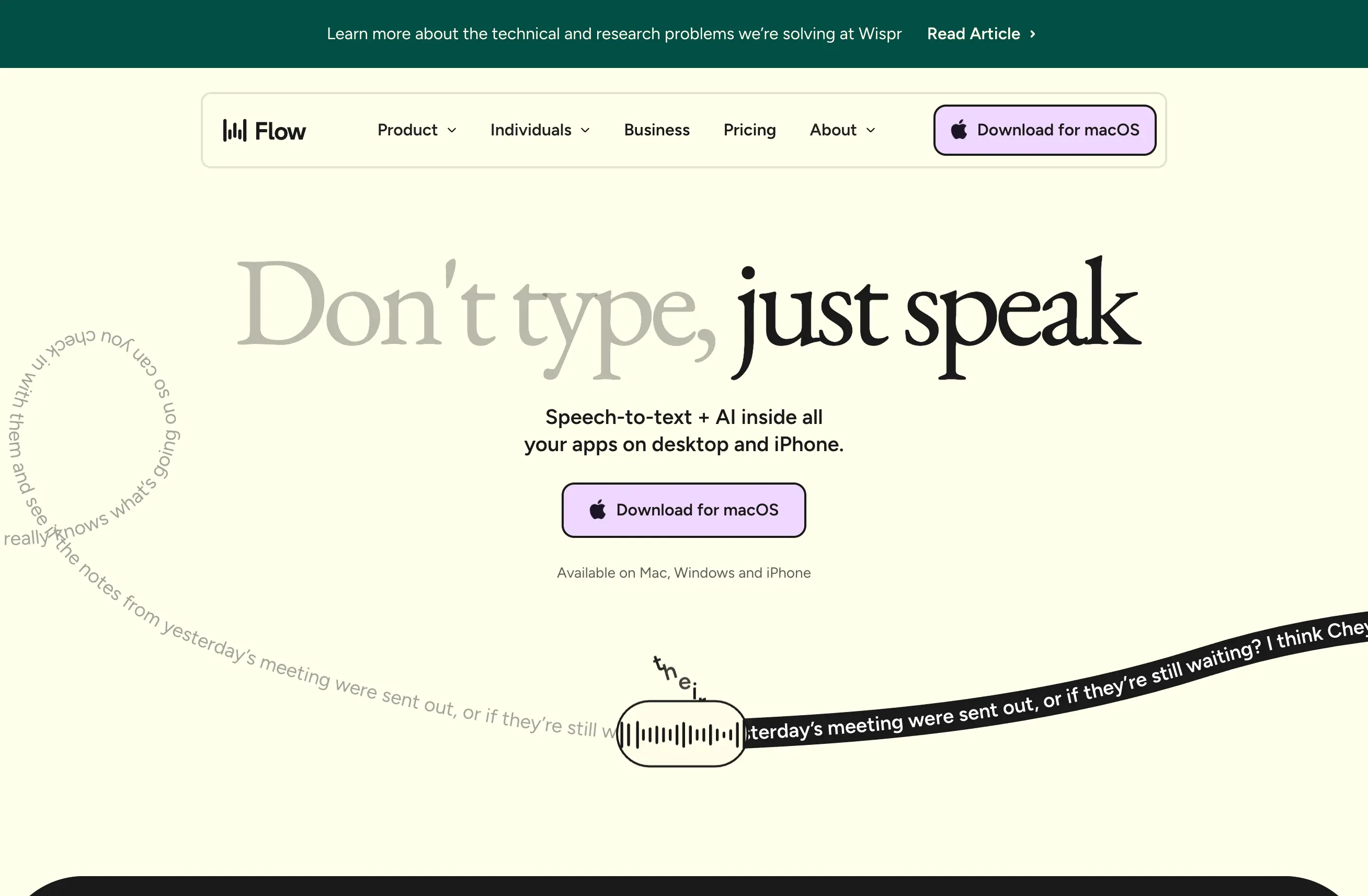
I used macOS dictation for months before finding WisprFlow. Built-in dictation is free, it's always there, and it works... sort of. But after switching to WisprFlow, I can't go back. The gap in quality is massive once you're doing real work with your voice.
The Problem with Mac's Built-in Dictation
Apple's dictation has improved over the years, but it still has fundamental limitations that make it painful for professional use:
Accuracy drops fast. Short sentences work fine. But the moment you're dictating a paragraph — explaining a technical concept, writing an email, or documenting code — the error rate climbs. You spend more time correcting than you saved by dictating.
No context awareness. Mac dictation doesn't understand what you're working on. It treats every word the same whether you're in Slack, VS Code, or a Google Doc. Technical terms, proper nouns, and domain-specific language get mangled constantly.
The pause problem. If you pause to think for more than a few seconds, dictation stops. For anyone who thinks before they speak (which should be everyone), this is infuriating. You end up rushing through sentences to avoid getting cut off.
No post-processing. What you say is what you get. No cleanup, no reformatting, no fixing of filler words. Every "um" and "uh" lands in your text.
What WisprFlow Does Differently
WisprFlow isn't just "better dictation." It's a fundamentally different approach to voice input:
It works everywhere. Any text field, any app, any context. Slack, Terminal, VS Code, Notion, your browser — WisprFlow injects text wherever your cursor is. No app needs to "support" voice typing because WisprFlow handles it at the system level.
AI-powered cleanup. WisprFlow doesn't just transcribe — it processes. Filler words get removed. Sentences get proper punctuation. Technical terms stay intact because the model understands context. What comes out reads like something you typed, not something you mumbled.
Speed that changes your workflow. I dictate at 184 WPM. That's not a typo. When your voice input is fast enough and accurate enough, you stop thinking of it as "dictation" and start thinking of it as your primary input method.
It knows what you mean. Say "open curly brace" in Mac dictation and you'll get the text "open curly brace." WisprFlow understands you want {. This extends to programming symbols, markdown formatting, and common patterns.
The Real Test: A Week of Work
I tracked my productivity for a week using each tool:
With Mac dictation: I'd dictate short messages in iMessage and simple Slack replies. Anything longer than two sentences, I'd switch back to typing because the correction overhead wasn't worth it.
With WisprFlow: I dictated emails, Slack threads, code comments, documentation, blog posts, and even commit messages. The accuracy was high enough that I rarely needed to go back and fix things.
The difference isn't subtle — it's the difference between a tool you use sometimes and a tool that becomes invisible.
Who Should Switch
Stay with Mac dictation if: You only dictate a few words at a time, you don't work with technical language, and you don't mind frequent errors.
Switch to WisprFlow if: You write for a living, you work across multiple apps, you want voice to be a primary input method, or you've ever been frustrated by Mac dictation's accuracy.
Try WisprFlow free and see the difference yourself.Bottom Line
Mac dictation is the bicycle. WisprFlow is the motorcycle. Both get you there, but one of them fundamentally changes how far and fast you can go. Once you've experienced accurate, context-aware voice typing that works in every app, built-in dictation feels like going back to hunt-and-peck typing.
How each tool turns speech into text
The useful difference is where the text appears and how much work remains afterward.
Mac Dictation works well for short, literal dictation in a focused text field.
WisprFlow dictates into any app with AI formatting, and it is free to try.

Discussion
Giscus