After my Claude Cowork GTM Workshop, the number one question I got was: "How do I set this up?"
This is the complete guide. By the end, you'll have:
- WisprFlow turning your speech into polished text at 179+ WPM in any app
- Claude Code executing your spoken instructions as real code
Total setup time: about 10 minutes.
The Stack at a Glance
| Layer | Tool | What It Does |
|---|---|---|
| Voice Input | WisprFlow | Syntax-smart voice dictation — works in terminals, IDEs, browsers, everywhere |
| AI Execution | Claude Code | Reads your codebase, edits files, runs commands from your spoken instructions |
| Meeting Capture | Granola | AI meeting notes without a bot joining |
Voice makes you faster at instructing Claude. Claude makes your voice input productive. Let me walk through setting up each one.
Step 1: WisprFlow (Voice Input)
This is the foundation. Everything else builds on being able to speak instead of type.

Installation
- Download WisprFlow
- Install the app (Mac, Windows, iOS, and Android are all supported)
- Grant microphone and accessibility permissions when prompted
- Set your activation hotkey (I use
Fnon Mac — it's easy to hold with my left pinky)
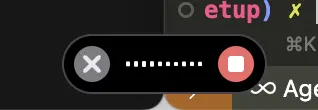
Two Modes You Need to Know
Hold-to-talk: Hold your hotkey, speak, release. Text appears wherever your cursor is. Use this for quick prompts, Slack messages, emails, terminal commands.
Hands-free mode: Double-tap your hotkey. WisprFlow stays active — you can walk around, gesture, pace. Speak for up to six minutes continuously. Double-tap again to stop. Use this for long prompts, brain dumps, and architecture discussions with yourself.
Pro Tips
- Don't slow down or enunciate carefully. WisprFlow handles natural speech, ums, false starts. Just talk normally.
- It understands developer terms. Supabase, MongoDB, camelCase, snake_case, acronyms — it gets them right.
- Context-aware formatting. It knows whether you're in a terminal, IDE, browser, or chat app and adjusts accordingly.
- Personal dictionary. It learns your unique words automatically — team names, project names, jargon.
- Train yourself on Day 1-3. It feels weird talking to your computer. By Day 3, it's natural. By Day 7, typing feels painfully slow.
Step 2: Claude Code (AI Execution)
With WisprFlow handling input, Claude Code becomes your hands. You speak what you want built; it builds it.
Prerequisites
You'll need one of:
- A Claude Pro, Max, Teams, or Enterprise subscription (recommended)
- An Anthropic Console account with API credits
- Access through Amazon Bedrock, Google Vertex AI, or Microsoft Foundry
Installation
macOS or Linux:
curl -fsSL https://claude.ai/install.sh | bash
Windows PowerShell:
irm https://claude.ai/install.ps1 | iex
Or via Homebrew:
brew install --cask claude-code
That's it. No API keys to export, no environment variables to set. The native installer auto-updates in the background.
First Run
cd your-project
claude
On first launch, Claude Code prompts you to log in through your browser. Once authenticated, your credentials are stored locally and you won't need to log in again. Claude Code is also available as a VS Code extension, desktop app, and in your browser.
The Core Workflow
- Open a terminal in your project directory
- Run
claudeto start a session - Hold your WisprFlow hotkey and speak: "Look at the auth module and refactor the token validation into its own file. Keep the existing tests passing and add a new test for expired tokens."
- Release the hotkey. Your spoken instruction appears as text in the Claude Code prompt.
- Press Enter. Claude Code reads your codebase, plans the changes, and executes them.
- Review the diff, approve or refine with another spoken instruction.
That's it. You just wrote code by talking.
Running Multiple Sessions
This is where the voice speed really compounds. Open 3-4 terminal tabs, each with a Claude Code session in a different directory or on a different task:
- Tab 1: Backend API changes
- Tab 2: Frontend component updates
- Tab 3: Test suite
- Tab 4: Documentation
Rotate between tabs, speaking instructions into each one. While Claude works on Tab 1, you're already speaking to Tab 2. The visualization below shows the difference — one person speaking to three agents simultaneously vs. someone typing one task:
Voice Speed Enables Parallel Orchestration
Watch how speaking at 170 WPM lets you dispatch instructions to multiple Cursor agents before a keyboard user even finishes typing one task
Why This Matters
When you can dispatch instructions at the speed of speech (170+ WPM vs 90 WPM typing), you can orchestrate multiple AI agents in parallel. While the keyboard user is still composing their first task, voice users have already dispatched three tasks and agents are working simultaneously. This is the multiplexing advantage that makes voice-first development transformative.
The Brain Dump Pattern
My favorite workflow for when I'm overwhelmed or starting something new. Double-tap WisprFlow and rant for 3-6 minutes:
"OK so the auth module is a mess. Token validation and session management are in the same file. I need to split them because we're about to add API key auth for the public endpoints and I don't want three different auth mechanisms in one file. Also the error messages suck — when auth fails users just get a 401 with no body. And we need rate limiting on the public endpoints, that's been a TODO for weeks. The tests are decent but they don't cover the expired token edge case that bit us in production last month..."
Claude Code takes this chaos and produces a structured plan. Usually within two turns, I have a prioritized task list and it's already working on item one.
Verbal Ventilation Pattern
Dump everything in your head out loud. The LLM sorts it, connects it to your tools, and reflects organized thoughts back. Especially powerful for ADHD and neurodivergent thinkers.
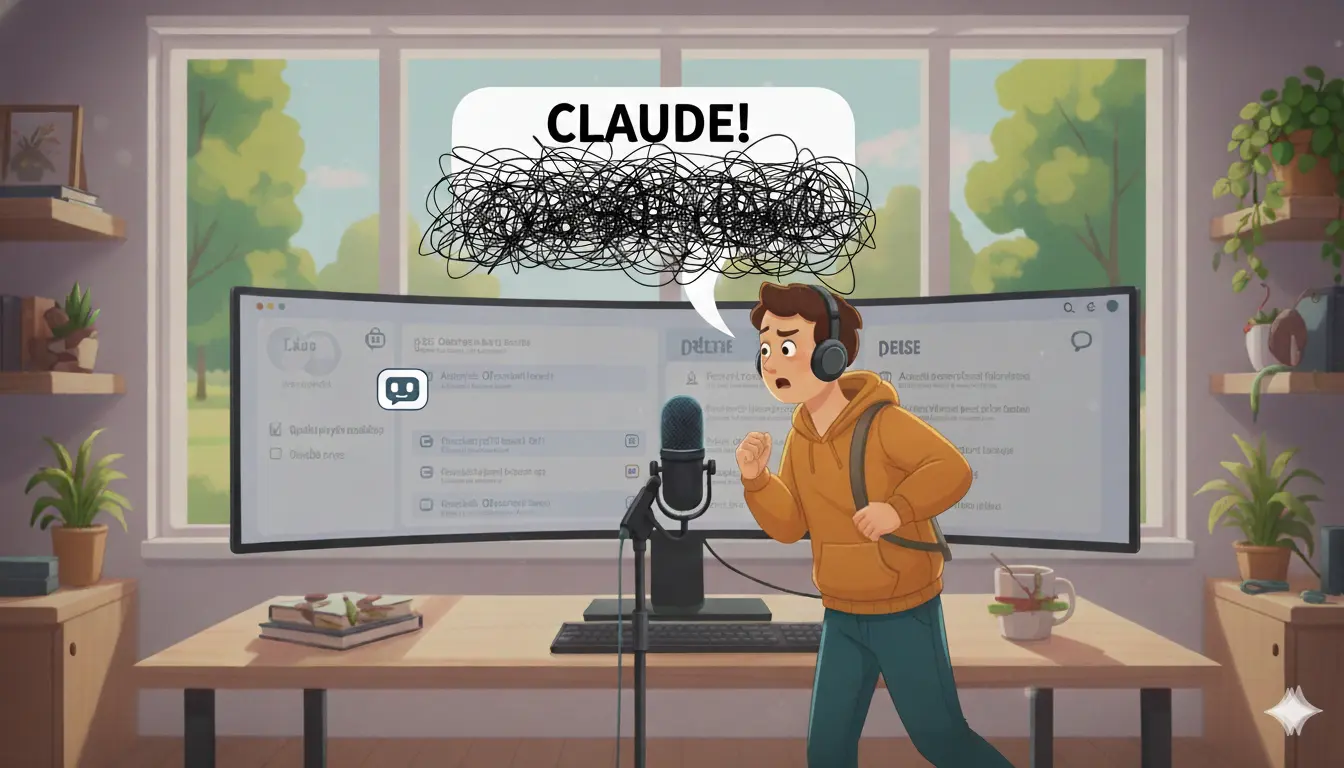
Walking in the woods, speaking thoughts aloud to Claude, letting AI help organize the chaos
Start the demo to see chaotic thoughts appear
Organized outputs will appear here
Step 3: Granola (Meeting Capture)
If you're in meetings throughout the day, Granola completes the stack by handling the other half of your work life — meetings — with the same philosophy: be present, let AI handle the capture.
Granola runs locally, captures meeting audio from your system output, and produces structured notes with action items. No bot joins your call. Nobody knows notes are being taken. You just... participate.
After the meeting, your notes include everything that was said, organized by topic with action items extracted. Combined with WisprFlow for rapid follow-up emails, you can go from meeting to follow-up in 60 seconds.
Putting It All Together
Here's what a typical morning looks like with the full stack:
9:00 AM — Standup. Granola captures notes. I'm fully present, asking questions, not typing.
9:15 AM — Post-standup. I speak follow-up messages to my team via WisprFlow into Slack. 30 seconds.
9:30 AM — Deep work. Three Claude Code sessions open. I speak architecture decisions into one, implementation details into another, test cases into a third. Rotating between them.
11:00 AM — Client call. Granola captures everything. I'm fully present. After the call, I speak a summary email via WisprFlow. Sent in 45 seconds.
11:15 AM — Back to deep work. I do a brain dump about the client's requirements (6-minute verbal ventilation), Claude Code organizes it into a task plan, and starts on the first item while I review the morning's completed work.
Total keystrokes for the morning: maybe 50. All for reviewing diffs and approving changes. Everything else was voice.
Quick Start Checklist
- Install WisprFlow and set your hotkey
- Practice hold-to-talk in Slack or email for one day
- Install Claude Code (
curl -fsSL https://claude.ai/install.sh | bash) - Run
claudein a project and log in - Try speaking your first prompt to Claude Code instead of typing it
- Install Granola before your next meeting
- Try the brain dump: double-tap WisprFlow, rant for 3 minutes about what you're working on, paste into Claude Code
By Day 3, this will feel natural. By Week 2, you'll wonder how you ever typed everything. The keyboard had a good run — but your voice is faster, more natural, and produces better output.
How each tool turns speech into text
The useful difference is where the text appears and how much work remains afterward.
Traditional typing stays precise and familiar for short edits.
WisprFlow dictates into any app with AI formatting, and it is free to try.

Discussion
Giscus