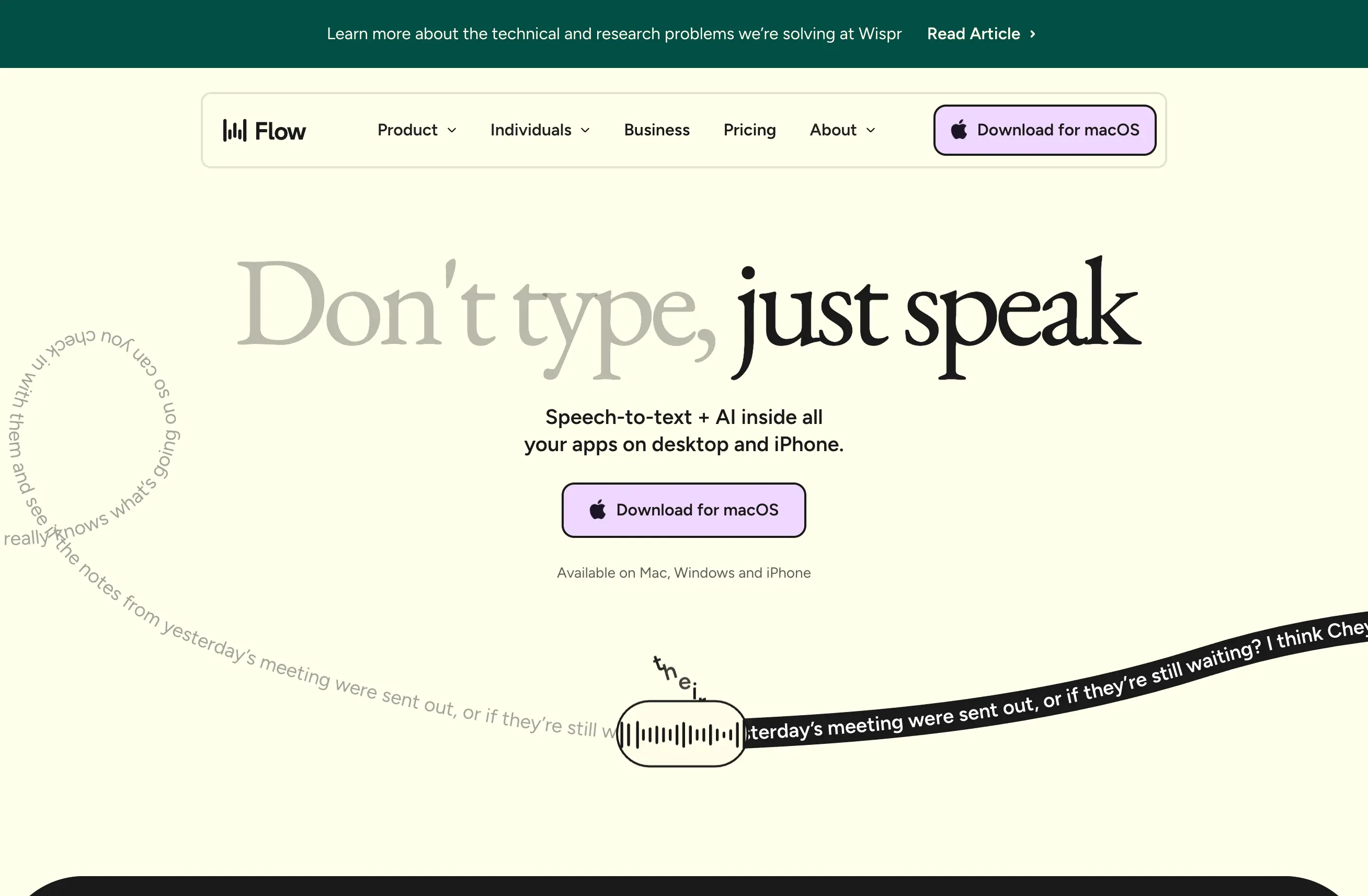
Android voice transcription reached a new level of sophistication in 2026. With WisprFlow's Android launch and major improvements to Google's voice recognition, Android users finally have professional-grade transcription options.
This complete guide covers everything you need to master voice transcription on Android in 2026.
Why 2026 is Android Voice Transcription's Breakthrough Year
WisprFlow Android Launch: February 2026 brought WisprFlow's industry-leading transcription to Android, finally giving users a premium alternative to Google Voice Typing.
Hardware Improvements: Android 14's enhanced voice processing and improved on-device AI in flagship phones like Galaxy S26 and Pixel 9 significantly boosted accuracy.
App Ecosystem Maturation: Third-party keyboard apps, automation tools, and productivity apps now offer sophisticated voice transcription integrations.
5G and Edge Computing: Faster network speeds enable real-time cloud processing while edge computing reduces latency for hybrid on-device/cloud transcription.
Top Android Voice Transcription Apps
1. WisprFlow (Premium Choice)
- 94-96% accuracy with custom vocabulary training
- Real-time transcription with zero lag
- Android-native features: widgets, Tasker integration, floating bubbles
- Cross-platform sync with iOS, Web, and Desktop
- Free: 30 min/month | Pro: $19/month
2. Google Voice Typing (Built-in Default)
- Integrated into Android system and keyboard
- 100+ language support
- Offline processing on Pixel devices
- Free unlimited usage
- Limited customization options
3. Dragon Anywhere (Professional)
- Industry-specific vocabulary support
- Advanced voice commands and formatting
- Professional transcription accuracy
- $15/month subscription
- Best for specialized fields
Hardware Optimization for Android Voice Transcription
Microphone Quality Rankings:
- Galaxy S26 Ultra: Dedicated voice processing chip, superior noise cancellation
- Pixel 9 Pro: Google's Tensor G4 with enhanced voice recognition
- OnePlus 12: Flagship-quality mics with good background noise filtering
- Nothing Phone (3): Surprisingly good voice capture for the price point
External Microphone Options:
- USB-C Lavalier Mics: Perfect for walking dictation and outdoor use
- Bluetooth Headsets: Sony WH-1000XM5 or Bose QuietComfort for noise cancellation
- Gaming Headsets: SteelSeries Arctis series offer excellent mic quality
- Professional Mics: Shure MV7 with USB-C adapter for podcast-quality recording
Android Audio Settings:
- Enable "Audio Zoom" on Samsung devices for voice focus
- Activate "Adaptive Audio" on Pixel phones for automatic optimization
- Use Developer Options to disable audio processing that might interfere with transcription
- Enable "Hi-Res Audio" in settings for external mic support
Android-Specific Voice Transcription Features
Widgets and Quick Access: WisprFlow's Android widget allows one-tap recording from your home screen. Configure it for:
- 1x1 widget for minimal space usage
- 2x1 widget with recent transcriptions
- 4x1 widget with quick action buttons
Tasker Automation: Create powerful voice transcription workflows:
- Auto-start recording when connecting to car Bluetooth
- Voice-to-email workflows triggered by location
- Meeting transcription that auto-saves to specific folders
- Time-based recording with automatic stop timers
Floating Bubble Mode: WisprFlow's floating bubble lets you record while using other apps:
- Resize and position anywhere on screen
- Tap to start/stop recording
- Minimal battery impact
- Works with split-screen multitasking
Google Assistant Integration: Set up voice commands for transcription:
- "Hey Google, start dictating with WisprFlow"
- "Hey Google, transcribe my meeting notes"
- "Hey Google, send voice message to [contact]"
Productivity Workflows for Android Users
Content Creation Workflow:
- Use WisprFlow's floating bubble during research browsing
- Export transcriptions directly to Notion or Obsidian
- Edit and format using Android's improved text selection
- Share to social media or publishing platforms
Meeting Documentation:
- Start WisprFlow recording with calendar integration
- Use speaker identification for multi-person meetings
- Generate automatic action items and summaries
- Export to CRM or project management tools
Learning and Note-Taking:
- Record lectures with WisprFlow's long-form transcription
- Use custom vocabulary for technical subjects
- Organize notes with automatic tagging
- Review transcriptions with Android's text-to-speech
Field Work and Mobile Productivity:
- Dictate reports while on-site using external microphones
- Use location-based automation to start recording
- Sync transcriptions automatically when back in WiFi range
- Export to company systems via API integrations
Language Support and Accuracy Tips
Multilingual Transcription:
- WisprFlow: 40+ languages with dialect recognition
- Google Voice Typing: 100+ languages with automatic detection
- Dragon Anywhere: 40+ languages with professional vocabularies
Accuracy Optimization:
- Speak clearly but naturally (don't over-enunciate)
- Use consistent pacing (120-140 words per minute optimal)
- Train custom vocabulary for frequently used terms
- Position microphone 6-8 inches from mouth for optimal pickup
- Use external microphones in noisy environments
Android Voice Training: Google Voice Typing improves with usage. Train it by:
- Reading aloud from texts in quiet environments
- Correcting transcription errors manually
- Using voice commands regularly for system operations
- Speaking your contacts' names clearly during setup
Advanced Android Integration Techniques
Keyboard Integration:
- Set WisprFlow as default voice input in Settings > Languages & Input
- Use gesture typing combined with voice for maximum speed
- Configure voice-to-text shortcuts in third-party keyboards like SwiftKey
Cross-App Integration:
- Use Android's share functionality to send transcriptions anywhere
- Set up IFTTT triggers for automatic cross-platform syncing
- Configure webhooks for integration with business systems
Battery Optimization:
- Exclude transcription apps from battery optimization
- Use adaptive battery settings to prioritize voice apps
- Monitor background app refresh for transcription services
- Consider external battery packs for extended recording sessions
Privacy and Security Considerations
On-Device vs Cloud Processing:
- Google Voice Typing: Primarily cloud-based with some Pixel offline capability
- WisprFlow: Hybrid approach with optional on-device processing
- Dragon Anywhere: Cloud-based with enterprise security features
Data Control:
- Review app permissions for microphone and storage access
- Configure automatic deletion of recordings after transcription
- Use VPN for additional privacy during cloud processing
- Enable Android's privacy dashboard monitoring
Business Use:
- Check compliance requirements for your industry
- Configure data residency settings for international businesses
- Use enterprise versions for enhanced security features
- Implement mobile device management (MDM) policies
Troubleshooting Common Android Voice Issues
Poor Accuracy:
- Check microphone permissions in app settings
- Clear voice app cache and retrain voice model
- Test with different microphones or environments
- Update to latest app versions and Android security patches
Recording Failures:
- Disable other apps using microphone simultaneously
- Check available storage space for recordings
- Restart device to clear audio pipeline issues
- Verify network connectivity for cloud processing
Sync Issues:
- Check background app refresh settings
- Verify account login status across devices
- Test network connectivity and firewall settings
- Contact support for cross-platform sync problems
Getting Started: 30-Day Android Voice Transcription Challenge
Week 1: App Setup and Basic Usage
- Install WisprFlow and complete setup
- Configure widgets and shortcuts
- Practice with different speaking styles
- Test accuracy with your typical content
Week 2: Workflow Integration
- Set up automation with Tasker or IFTTT
- Configure export settings for your productivity apps
- Practice meeting transcription workflows
- Test external microphone setups
Week 3: Advanced Features
- Train custom vocabulary for your field
- Set up team collaboration if applicable
- Configure privacy and security settings
- Optimize for your specific Android device
Week 4: Full Productivity Integration
- Replace typing with voice for specific tasks
- Measure time savings and accuracy improvements
- Fine-tune workflows based on usage patterns
- Plan for long-term transcription strategy
Android voice transcription in 2026 offers unprecedented accuracy and flexibility. With the right app choice, hardware setup, and workflow integration, you can transform how you capture, process, and share spoken content on Android devices.
How each tool turns speech into text
The useful difference is where the text appears and how much work remains afterward.
Traditional typing stays precise and familiar for short edits.
WisprFlow dictates into any app with AI formatting, and it is free to try.

Discussion
Giscus