
Voice typing has become an essential productivity tool for anyone who spends significant time writing in Google Docs. Whether you're drafting reports, creating content, or collaborating on documents, voice-to-text technology can dramatically increase your writing speed and reduce repetitive strain injuries.
In 2026, you have several options for voice typing in Google Docs, ranging from the built-in voice typing feature to advanced AI-powered solutions that offer superior accuracy and features.
Google Docs Built-in Voice Typing
Google Docs includes a native voice typing feature that's free and easy to access. Here's what you need to know:
How to Access It
- Open any Google Docs document
- Go to Tools > Voice typing (or press Ctrl+Shift+S)
- Click the microphone icon to start dictating
- Speak clearly and naturally
Capabilities and Limitations
What it does well:
- Free to use with any Google account
- Basic punctuation recognition for periods, commas, and question marks
- Multiple language support for international users
- Simple voice commands like "new line" and "new paragraph"
Where it falls short:
- Limited accuracy with technical terms, names, and industry jargon
- No custom vocabulary training for specialized terminology
- Basic formatting options compared to dedicated voice typing tools
- Requires Chrome browser for optimal performance
- No offline functionality - requires internet connection
Advanced Voice Typing Solutions
For users who need more accuracy, features, and flexibility, several third-party solutions offer superior voice typing capabilities:
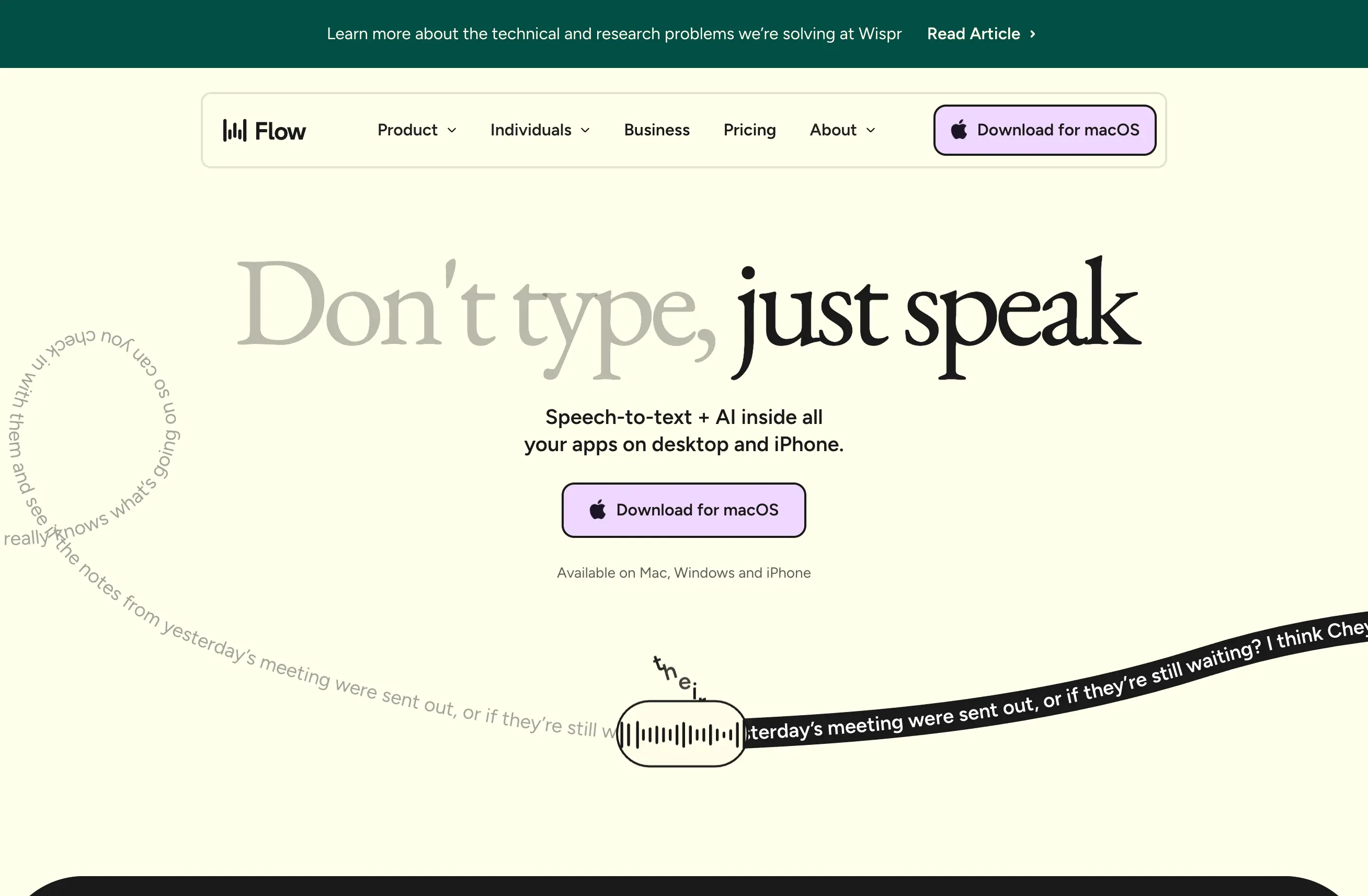
WisprFlow: Premium AI Voice Typing
WisprFlow represents the cutting edge of voice-to-text technology, offering several advantages over Google's built-in solution:
Advanced AI Accuracy:
- Context-aware transcription that understands meaning, not just words
- Custom vocabulary training for industry-specific terms and personal names
- Punctuation intelligence that adds appropriate formatting based on speech patterns
- Error correction algorithms that learn from your writing style
Professional Features:
- Multi-app integration beyond just Google Docs
- Voice commands for complex formatting and document navigation
- Real-time editing with immediate text correction capabilities
- Offline functionality for secure environments or unreliable internet
Workflow Integration:
- Seamless copy-paste from WisprFlow to Google Docs
- Batch processing for multiple documents
- Collaboration features for team dictation workflows
- Export options to various document formats
Dragon NaturallySpeaking Alternatives
While Dragon was once the gold standard, modern AI-powered solutions like WisprFlow offer comparable accuracy with better cloud integration and collaboration features.
Practical Workflows for Google Docs Voice Typing
The Hybrid Approach
Many professional writers use a combination of voice typing and traditional typing:
- Initial draft creation using voice dictation for speed
- Editing and refinement using keyboard for precision
- Final formatting using Google Docs native tools
- Collaborative review using comments and suggestions
Document-Specific Strategies
Long-form content:
- Use voice typing for main body text
- Type headings and formatting manually
- Review and edit after completing each section
Reports and presentations:
- Dictate key points and bullet items
- Add data and citations manually
- Use voice typing for narrative sections
Creative writing:
- Leverage voice typing for dialogue and description
- Maintain natural speech patterns in character voices
- Edit for pacing and style after dictation
Technical Considerations
Browser Compatibility
Google Chrome:
- Full feature support for Google Docs voice typing
- Best performance and accuracy
- Optimal microphone access and permissions
Firefox and Safari:
- Limited voice typing functionality
- May require additional permissions
- Reduced accuracy compared to Chrome
Third-party solutions:
- Work across all browsers
- Often provide desktop applications
- Better performance than browser-based solutions
Hardware Requirements
Microphone Quality:
- Built-in laptop mics: Adequate for basic use
- USB headsets: Significantly improved accuracy
- Professional mics: Best results for extended dictation sessions
Processing Power:
- Google Docs voice typing: Minimal requirements
- AI-powered solutions: Benefit from faster processors
- Cloud processing: Reduces local hardware demands
Privacy and Security
Google Docs Voice Typing:
- Audio processed on Google servers
- Subject to Google's privacy policies
- Data retention varies by account type
WisprFlow and Alternatives:
- Often offer local processing options
- Enterprise plans with enhanced security
- GDPR and compliance features available
Optimizing Voice Typing Performance
Environmental Setup
Quiet environment:
- Minimize background noise
- Use noise-canceling headsets when necessary
- Consider acoustic treatment for dedicated workspaces
Consistent positioning:
- Maintain steady distance from microphone
- Develop consistent speaking posture
- Use pop filters for professional setups
Speaking Techniques
Clear articulation:
- Speak at normal conversational pace
- Enunciate clearly without over-pronouncing
- Pause naturally between thoughts
Punctuation commands:
- Learn voice commands for common punctuation
- Practice natural speech patterns that trigger correct punctuation
- Use editing passes to add complex formatting
Future of Voice Typing in Google Docs
The landscape of voice typing continues to evolve rapidly:
AI Improvements
- Better context understanding for technical and specialized content
- Real-time translation for multilingual documents
- Style adaptation that learns individual writing preferences
- Collaboration features that recognize different voices in team settings
Integration Enhancements
- Deeper Google Workspace integration across Sheets, Slides, and other apps
- Smart suggestions based on document content and purpose
- Workflow automation that connects voice commands to document actions
Accessibility Features
- Enhanced support for users with disabilities
- Customizable voice commands for different accessibility needs
- Visual feedback options for hearing-impaired users
Making the Right Choice
Choose Google Docs built-in voice typing if:
- You need basic dictation functionality
- Budget is a primary concern
- Your writing doesn't require specialized terminology
- You primarily use Chrome browser
Upgrade to WisprFlow if:
- Accuracy is critical for your work
- You dictate frequently or for extended periods
- You work with technical or specialized vocabulary
- You need advanced formatting and editing features
- You value privacy and local processing options
The best voice typing solution depends on your specific needs, budget, and workflow requirements. While Google's built-in feature provides a solid foundation, advanced AI-powered tools like WisprFlow offer the accuracy and features that professional writers and knowledge workers need to maximize their productivity.
How each tool turns speech into text
The useful difference is where the text appears and how much work remains afterward.
Traditional typing stays precise and familiar for short edits.
WisprFlow dictates into any app with AI formatting, and it is free to try.

Discussion
Giscus