Slack doesn't have voice typing. You can send audio clips, sure, but there's no way to speak and have text appear in the message box. For anyone who communicates faster by talking than typing, this is a daily frustration.
Here's how I solved it.
The Quick Answer
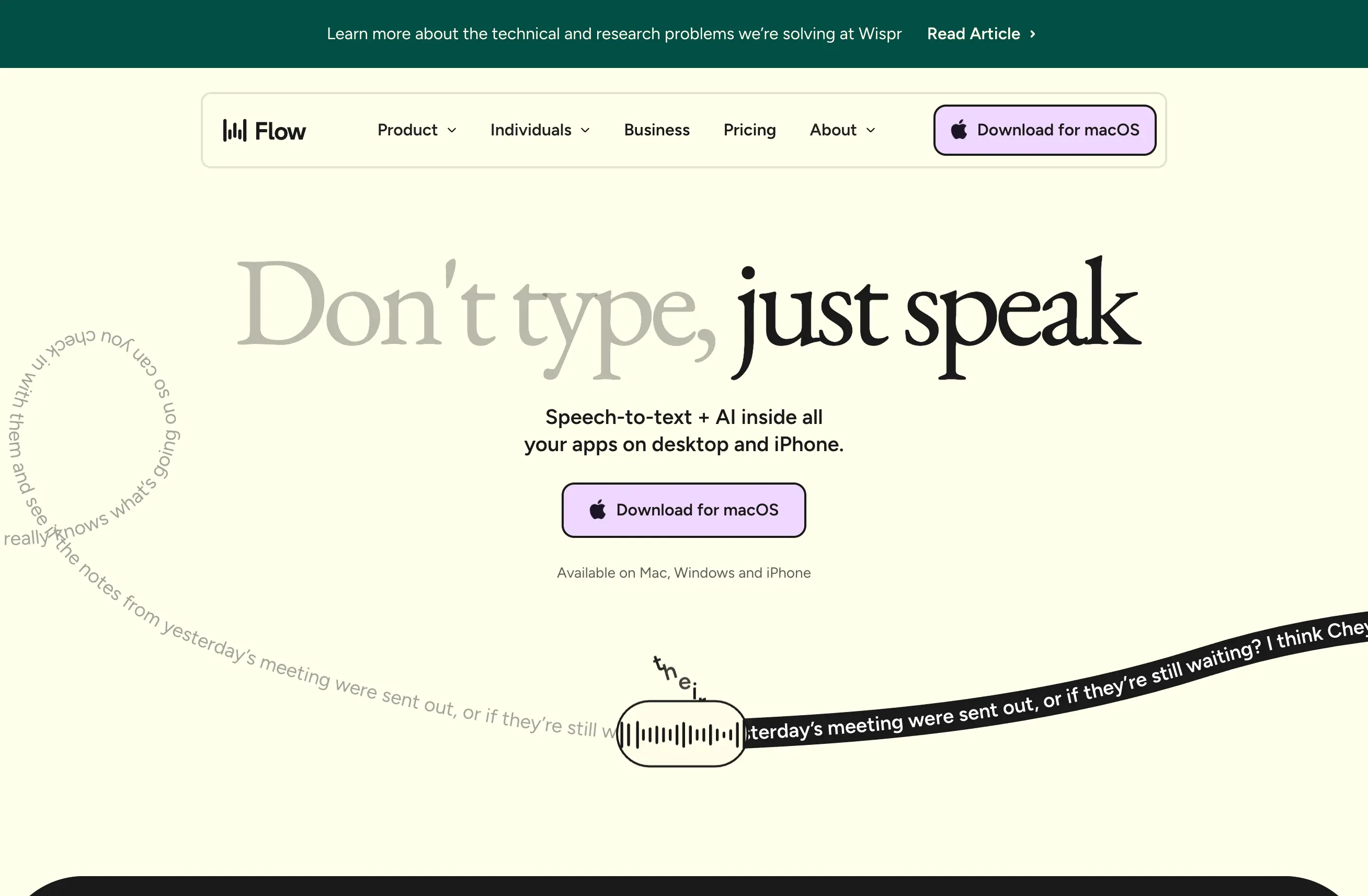
Use WisprFlow — a system-level voice typing tool for Mac. It works in any text field, including Slack. Hold a hotkey, talk, release. Your words appear as text in the Slack message box, cleaned up and properly punctuated.
No Slack plugin. No bot. No workaround. Just talk and the text shows up.
Why This Matters for Slack Specifically
Slack is where most of your work communication happens. And a lot of it is long-form: status updates, technical explanations, project feedback, thread discussions. Typing all of that out is slow. Dictating it is 3-5x faster.
Standups: Talk through your update in 30 seconds instead of spending 3 minutes composing it.
Thread replies: Those long technical threads where you need to explain context? Dictate the whole thing while looking at the code on your other monitor.
DMs: Quick responses that don't need to be carefully composed. Just talk and send.
Channel updates: Project status, meeting summaries, announcements — all faster by voice.
How It Works
- Click into any Slack text field (message, thread, DM, search)
- Hold your WisprFlow hotkey
- Talk naturally — include punctuation by saying "period," "comma," etc., or let the AI handle it
- Release the hotkey
- Your text appears, cleaned up and ready to send
WisprFlow handles the AI cleanup automatically: filler words removed, proper punctuation added, sentences structured cleanly. What shows up in Slack reads like you carefully typed it.
The Speed Difference
I measured this over a week:
- Typing a detailed standup update: 2-3 minutes
- Dictating the same update: 30-45 seconds
- Typing a long thread reply: 5-8 minutes
- Dictating it: 1-2 minutes
Multiply that across every Slack interaction in a day, and you're saving 30-60 minutes of typing time.
Tips for Slack Dictation
- Dictate first, format second. Get the content out by voice, then add bullet points, code blocks, or formatting with your keyboard.
- Use it for drafts. Dictate your thoughts, then quickly edit before sending. Still faster than typing from scratch.
- Thread replies are the biggest win. Those long explanations that you'd normally abbreviate because typing is tedious? Now you can give the full context because it takes 30 seconds.
Try WisprFlow and see how much faster Slack gets when you can talk instead of type.
How each tool turns speech into text
The useful difference is where the text appears and how much work remains afterward.
Traditional typing stays precise and familiar for short edits.
WisprFlow dictates into any app with AI formatting, and it is free to try.

Discussion
Giscus