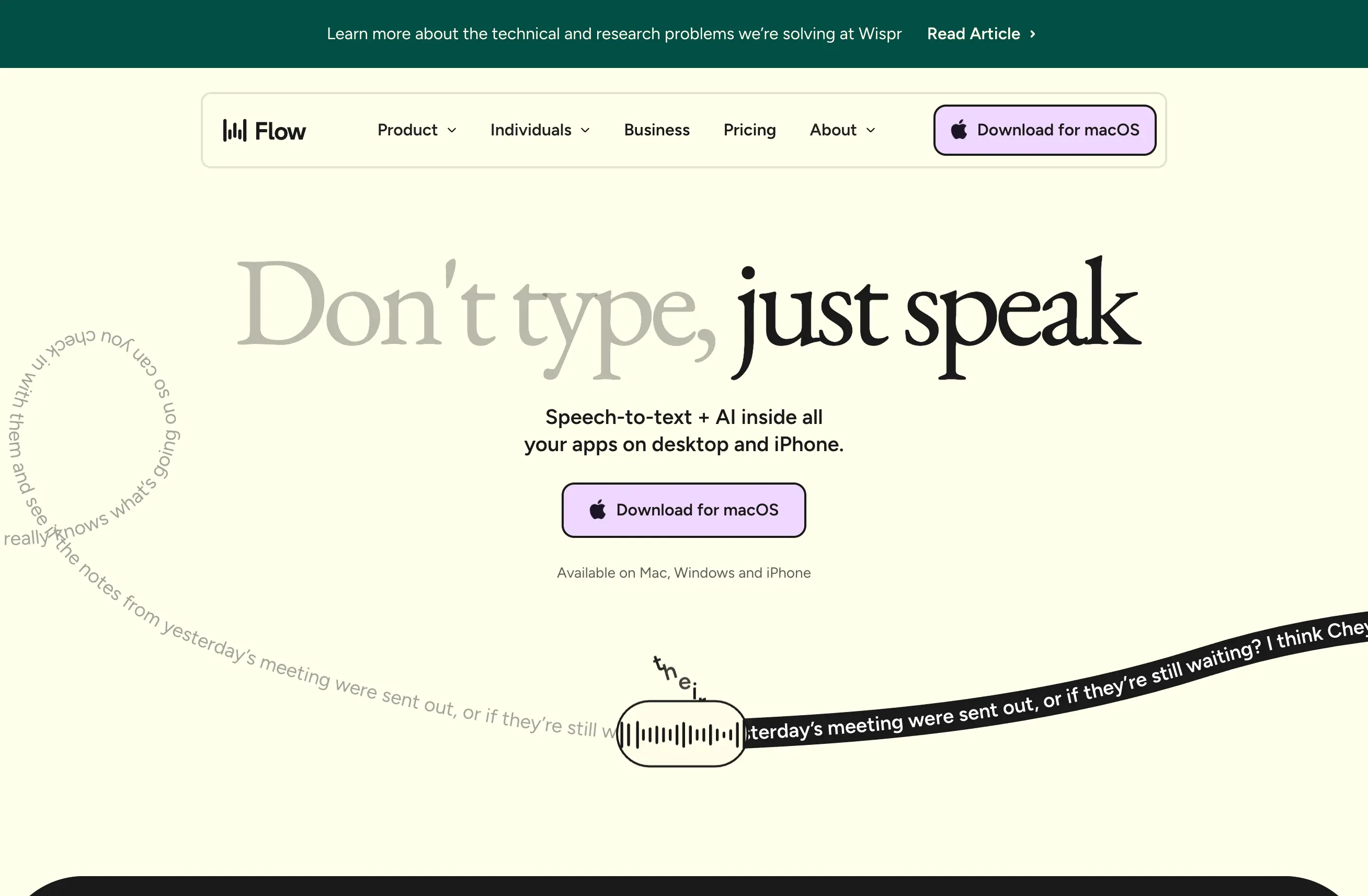
WisprFlow launched its Android app on February 23, 2026, and it's been a game-changer for mobile voice transcription. The Android version includes features that weren't even in the iOS app initially. Here's how to set it up properly for maximum accuracy and productivity.
Download and Initial Setup
Step 1: Download WisprFlow from the Google Play Store (search "WisprFlow voice transcription")
Step 2: Grant necessary permissions:
- Microphone access (required)
- Storage access (for saving transcripts)
- Notification access (for background recording alerts)
Step 3: Create your account or sign in with existing credentials
The initial setup takes about 3 minutes. The app will ask you to record a short calibration sample to optimize the AI for your voice.
Android-Specific Features
WisprFlow's Android app includes several features not available on other platforms:
System-wide transcription: Use WisprFlow as your default voice input for any app
Background recording: Continue transcribing even when the app isn't active
Quick tiles: Add WisprFlow to your notification shade for instant access
Tasker integration: Automate transcription workflows with Android automation apps
Optimizing Voice Recognition Settings
Microphone calibration: Go to Settings > Voice > Calibrate Microphone. Record in your typical environment (office, car, etc.) for best results.
Language models: Download offline language models for your primary languages. This improves accuracy and works without internet connection.
Noise filtering: Enable "Advanced Noise Cancellation" in Settings > Audio. This uses Android's audio processing to filter background noise.
Android Integration Setup
System Voice Input
- Go to Android Settings > System > Languages & input
- Select "Virtual keyboard" > "Manage keyboards"
- Enable "WisprFlow Voice Input"
- Set as default voice input method
Now you can use WisprFlow for voice typing in any Android app - Gmail, WhatsApp, note-taking apps, etc.
Quick Tiles Configuration
- Pull down notification shade twice to access Quick Settings
- Tap "Edit" or pencil icon
- Drag "WisprFlow Record" tile to active area
- Tap to instantly start recording from anywhere
Background Recording
Enable in Settings > Recording > "Allow background recording." This lets you record meetings or lectures even when using other apps.
Important: Background recording uses more battery. Toggle it off when not needed.
Workflow Integration
File Organization
WisprFlow creates a folder in your Documents directory: /Documents/WisprFlow/Transcripts/
You can change this location in Settings > Storage > "Transcript location"
Export Options
Android version supports multiple export formats:
- Plain text (.txt)
- Rich text (.rtf)
- PDF with timestamps
- Direct share to apps (email, Slack, etc.)
Automation with Tasker
If you use Tasker, WisprFlow supports these automation triggers:
- Start recording when connecting to car Bluetooth
- Auto-transcribe voice messages in messaging apps
- Schedule automatic meeting transcription
Performance Tips for Android
Battery optimization: Add WisprFlow to battery optimization exceptions in Settings > Battery > Battery optimization
Storage management: Set up automatic cloud backup in WisprFlow Settings > Backup. Transcripts sync to Google Drive or Dropbox.
Offline usage: Download language models for offline transcription. Essential for areas with poor cell coverage.
Troubleshooting Common Issues
Low accuracy? Re-run microphone calibration in a quiet environment. Also check that you're speaking clearly and not too far from the phone.
App crashes during long recordings? Ensure WisprFlow is excluded from battery optimization and has sufficient storage space.
Background recording stops? Check that battery optimization is disabled and the app has permission to run in the background.
Android vs iOS Feature Comparison
The Android version actually has more features than iOS currently:
Android exclusive:
- System-wide voice input
- Background recording
- Quick tiles
- Tasker automation
- Offline language models
iOS exclusive:
- Siri shortcuts integration
- Apple Watch companion
WisprFlow is actively developing both platforms, but Android users get access to deeper system integration.
Getting the Most Out of WisprFlow on Android
The key to great transcription results is proper setup and consistent usage. Spend time calibrating the microphone and downloading offline models for your primary languages.
The WisprFlow Android app is genuinely useful for daily productivity, not just a mobile afterthought. The system integration makes it feel like a native Android feature rather than a bolt-on transcription tool.
Start with the 30-day free trial to test with your specific Android device and use cases. The accuracy and feature set make it worth the subscription cost if you regularly need voice transcription on mobile.
How each tool turns speech into text
The useful difference is where the text appears and how much work remains afterward.
Traditional typing stays precise and familiar for short edits.
WisprFlow dictates into any app with AI formatting, and it is free to try.

Discussion
Giscus