
Google Meet can produce notes through Google's own features, and many third-party services join as an attendee. A third option is device capture: an app on your computer listens to microphone and system audio, then turns the conversation into a transcript and note without appearing in the Meet grid.
That route is useful for external calls where you do not control the Workspace account, meetings where another attendee would be distracting, or personal notes that do not need to become a shared Google recording.
The direct setup
- Join the Google Meet call in your usual browser.
- Open the matching note in the desktop capture app.
- Confirm microphone and system-audio permissions.
- Tell the group that transcription is active, then start capture.
- Review the transcript and edit the resulting note before sharing it.
I use Granola. It captures the audio available to the desktop app without asking Meet to admit an automated participant. It then uses cloud transcription providers, calendar context, and the cues typed during the call to create an editable enhanced note.
Device capture, Gemini notes, and meeting bots
Google's “take notes for me” experience stays inside Meet and can be the cleanest option for an organization already using eligible Workspace features. Meet makes the note-taking state visible, and host or administrator settings determine availability. That is useful when the output should belong to the meeting rather than one attendee.
A third-party bot joins the call. Depending on access settings, the host may need to admit it. The participant list or grid then contains another identity. Bots can be appropriate when a service needs to attend, record, or distribute a shared call artifact.
Device capture does not require a Meet integration and does not appear as a participant. The result lives in the user's note workflow. It also means Google Meet itself provides no notice, so the user must handle disclosure directly.
| Requirement | Gemini notes | Notetaker bot | Device capture with Granola |
|---|---|---|---|
| Requires eligible Workspace setup | Yes | No, but admission may be needed | No Meet integration |
| Extra participant tile | No | Yes | No |
| Meet displays note-taking state | Yes | Bot is visible | No platform indicator |
| Output ownership | Meeting or Workspace workflow | Service workspace | User's Granola note |
| Saved audio in Granola | N/A | Product-dependent | No; Granola says audio is not retained |
The Granola note workflow
Open the scheduled Granola note before the call and start capture deliberately. A calendar connection helps present the right meeting, but it does not remove the need to check that transcription is running. Type only the human signal during the conversation: “decision changed,” “ask legal,” or “customer's actual concern.”
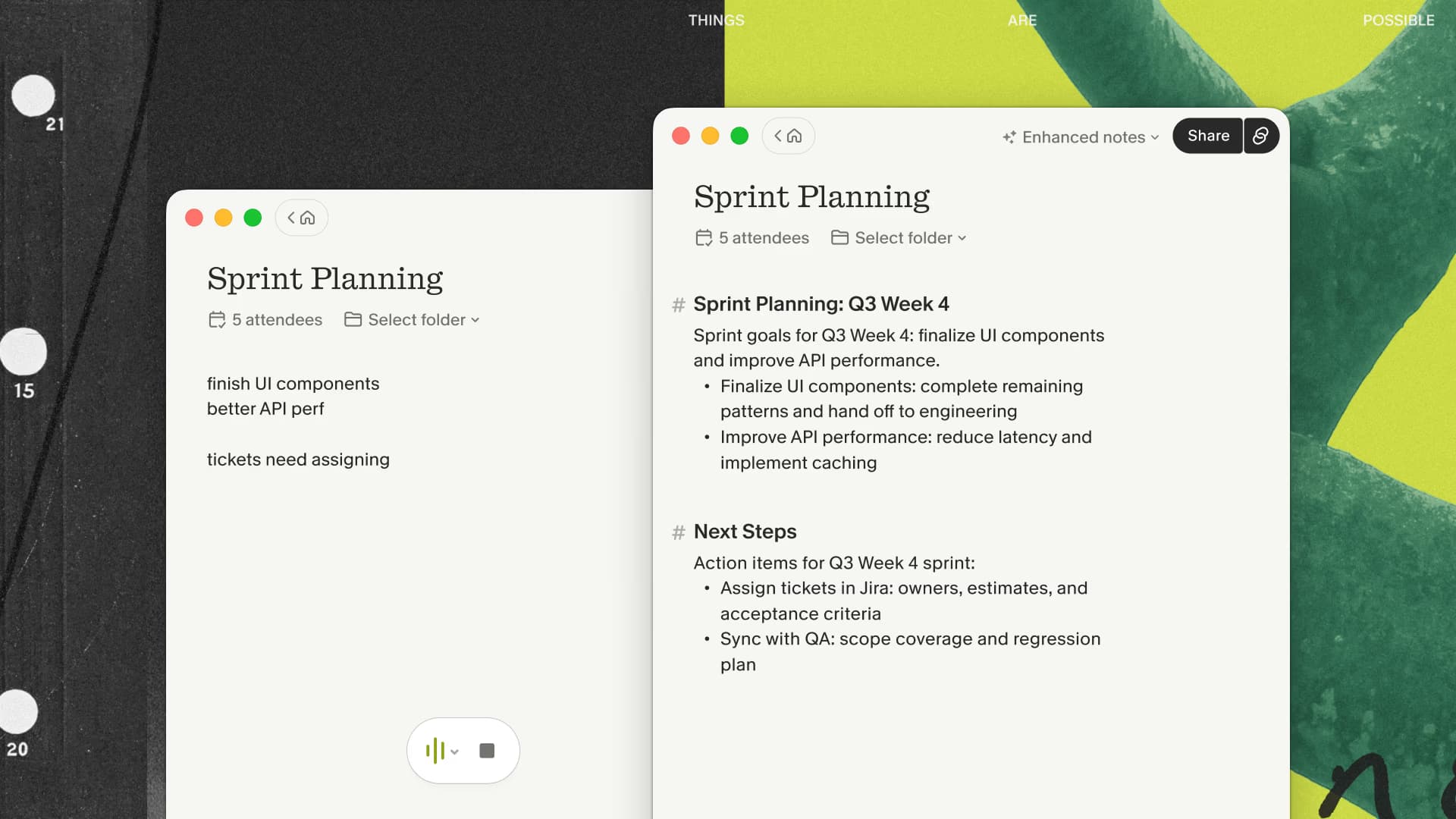
After Meet ends, enhance the note and inspect it while the context is fresh. Correct proper nouns, dates, amounts, and owners. Preserve uncertainty. Remove tangents that do not belong in the shared recap, and move commitments to the system where they will be completed.
Granola's durable output is text. It says it does not retain meeting audio, so it cannot replay a disputed sentence. Use a recording-centered workflow when the original media matters.
If a reviewed note is the output your Meet calls need, try this Granola workflow with three months free before changing a wider team process.
Browser and audio failure modes
Meet users often have several browser profiles, multiple Google accounts, and changing audio devices. A meeting can open in the wrong profile, the browser can lose microphone permission, or a Bluetooth headset can change modes when the call begins.
Before a consequential call, test with the same browser profile and headset. Confirm that the transcript contains the remote speaker as well as you. Device capture needs access to the system-audio path; microphone permission alone is not enough.
Watch for these failures:
- Capture did not begin because the calendar event changed.
- The transcript contains your voice but not Meet audio.
- A conference-room speaker produced echo or duplicate speech.
- Companion mode and room audio created confusing speaker boundaries.
- Overlapping speakers hid a decision or owner.
- The generated note made a tentative idea sound final.
No meeting assistant removes the review step. The more authoritative the recap will become, the more carefully its facts should be checked.
For bot-free capture you personally control, run the Google Meet test through my Granola link. Choose Gemini's native notes when the artifact should instead belong to the Workspace meeting.
External calls and hybrid rooms
External Meet calls cross account boundaries. The organizer's Workspace plan and settings control Google's native features, and an outside bot may face admission rules. Device capture gives the attendee a consistent personal note workflow across those accounts.
Hybrid rooms need extra care. People may join through a room system and use Companion mode on laptops. Place the active microphone to avoid echo, and do a transcript test with the actual room. If the conversation splits into side discussions, a single audio stream may not produce usable speaker boundaries.
For research interviews, keep the transcript as source material and verify any quotation. For client work, convert the note into a short recap of decisions, owners, and open questions rather than sharing the raw transcript.
A tool-free option
For a short decision meeting, a shared Google Doc can be better than transcription. Create sections for decision, rationale, owner, due date, and open questions. Ask one person to edit it, then read the final commitments aloud before the call ends.
Use transcript-backed notes when the surrounding conversation matters or the group moves too quickly for that lightweight log. Do not add a capture system merely because it exists.
Consent and sharing
Tell participants what is being transcribed and what you plan to do with the note. Follow the applicable laws, contracts, and organization policies. The meeting transcription consent guide covers the details.
Before sharing, inspect the Granola note's audience and remove private cues. Device capture can keep the Meet interface quiet while still producing sensitive text that needs deliberate handling.
Run a realistic Meet test
Use a permitted ten-minute call in the browser profile, Google account, room, and headset you normally use. Include one remote speaker, a few names and numbers, and two cues typed during the meeting. Then turn the output into the recap you would really send.
Pass the workflow only if both sides were captured, critical facts are easy to verify, and the note saves meaningful cleanup. Otherwise, fix the audio route or use the Workspace-native option available to the host.

Discussion
Giscus