
You can get useful Zoom notes without admitting an automated attendee from the waiting room. Run a device-capture app beside Zoom, make sure it can hear both your microphone and system audio, and review the resulting transcript before you use it.
This route is useful when you are a guest in somebody else's Zoom account, a third-party bot would distract from the opening, or the host's AI and recording settings are outside your control.
The five-step setup
- Join Zoom with the microphone and speakers or headset you normally use.
- Open the scheduled note in your device-capture app.
- Confirm the app can access your microphone and Zoom's system audio.
- Tell participants that transcription is active, then start capture.
- After the call, verify the transcript and turn it into the actual recap or task list.
I use Granola for this workflow. Its desktop app captures microphone and system audio without requesting entry to the Zoom meeting. It sends the audio stream to cloud transcription providers and produces a transcript plus an editable enhanced note. Granola says it does not retain the meeting audio.
How this differs from Zoom's own options
Zoom's recording, transcription, and AI Companion features are valuable when the host and account have the right setup. They can also be visible and policy-controlled by design. The host may need to enable a feature, account settings may restrict it, and Zoom informs participants when recording or relevant AI features are active.
A third-party notetaker bot uses another path. It joins as an attendee, may wait for admission, and appears in the participant list. That visibility can be helpful disclosure, but it can also consume the first minute of a client or interview call.
Device capture is independent of the host's Zoom integration. No Granola participant asks to enter. This does not grant extra permission or create a shared Zoom transcript; it creates a note in the user's own workflow.
| Requirement | Zoom native features | Notetaker bot | Device capture with Granola |
|---|---|---|---|
| Host or account configuration | Usually | Admission may be required | No Zoom installation |
| Extra attendee | No | Yes | No |
| Platform notice | Zoom controls it | Bot is visible | No Zoom-generated notice |
| Shared recording | Depending on setup | Depending on product | No retained audio in Granola |
| Private editable note | Possible follow-up | Usually derived from bot record | Central workflow |
What the Granola workflow looks like
Open the Zoom call and the matching Granola note. Start capture deliberately; do not assume that a calendar event means transcription has begun. During the discussion, type only the cues that need your judgment—a surprising objection, a decision that changes scope, or a statement you need to verify.
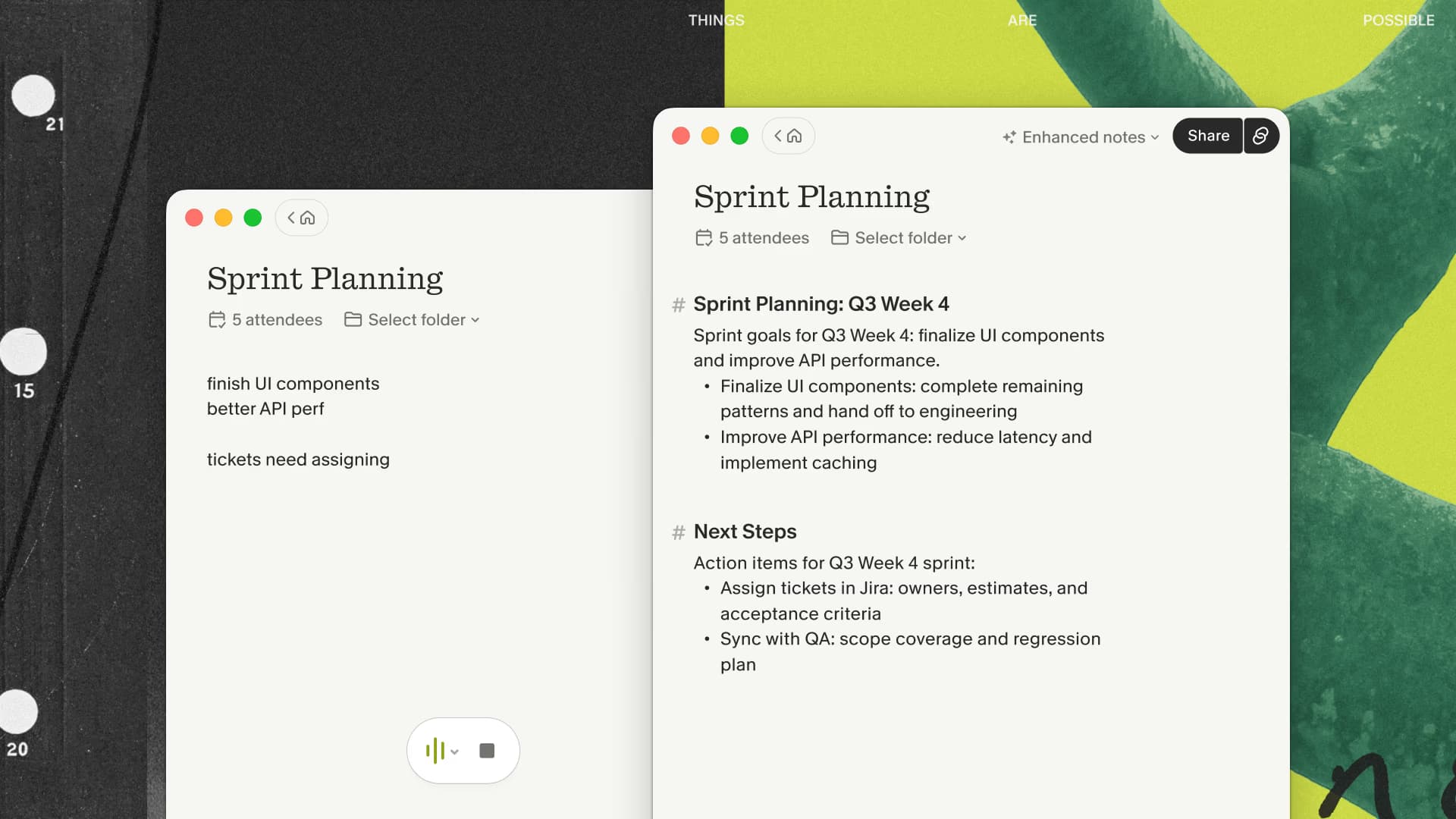
After the meeting, enhance and review the note. Correct names, numbers, and dates. Separate decisions from ideas. Move commitments into the real task system. If the meeting needs a shared artifact, edit the note for that audience before sending it.
This is a better experience than collecting transcripts nobody reads. The measure is how quickly the meeting becomes accurate follow-up.
If that reviewed follow-up is what you need from Zoom, try the Granola workflow with three months free on one routine call before using it for higher-stakes meetings.
Headsets, audio routing, and common failures
The usual failure is not the language model. It is the wrong audio path. A Bluetooth headset can switch profiles, Zoom can select a different microphone than the operating system, or an external display can become the output after a reconnect.
Before an important call, run a short test with the exact devices you will use. Confirm that the transcript contains your voice and the remote voice. If one side is missing, check the selected Zoom devices and the operating-system permissions for microphone and system audio.
Other predictable problems include:
- Capture never started because the meeting title or time changed.
- Notification sounds and nearby conversations entered the transcript.
- Crosstalk hid a name or number.
- A headset disconnected during the call.
- The summary converted a proposal into a decision.
Granola does not preserve an audio file to replay later. If exact playback is required, use Zoom recording or a recording-centered product with the appropriate approval.
Client calls, interviews, and internal meetings
For a client call, prepare a note with the outcome you need: decision, next steps, and unresolved risks. The bot-free participant list reduces one interruption, while a clear spoken disclosure handles expectations directly.
For an interview, use the transcript as source material rather than an automated score. Verify quotations and keep evaluation criteria separate from generated prose.
For an internal planning call, type cues when a decision changes. The enhanced note can then preserve the reason, not merely the final action. If the team needs a central recording for absent colleagues, use the organization's approved Zoom workflow instead.
For the private-note case, run the bot-free Zoom test through my Granola link. Choose Zoom's recording path instead when colleagues need playback or a meeting-owned archive.
A tool-free alternative
If capture is unnecessary or unapproved, use a shared decision log. Put three headings in a Zoom document or chat: decisions, owners, and open questions. Assign a note-taker, read the commitments back during the final two minutes, and send the link before people leave.
That approach often beats a transcript for a short operational meeting. Use AI capture when the surrounding context and details are valuable enough to justify review.
Consent and company policy
No bot appears and Zoom does not generate a platform notice for device capture. Tell participants yourself. Follow the rules that apply to the participants and the organizations involved. The meeting transcription consent guide explains the boundary in more detail.
If somebody declines, stop capture and take agreed manual notes. A quieter interface should create a better conversation, not a surprise record.
Run a ten-minute Zoom test
Schedule a permitted test call using your normal host or guest role, headset, and Zoom client. Speak from both sides, mention a few names and numbers, and type two short cues. Afterward, check capture completeness and time how long the note takes to become a sendable recap.
If the test passes, the workflow is ready for ordinary calls. If it fails, fix the audio route or choose Zoom's native recording before relying on it for anything important.

Discussion
Giscus